

Users
Accounts for the gateway's own login and their four roles. Create, change roles, disable, reset passwords and delete; the auditor role and separation of duties. Community has 1 user, Professional is per seat, the auditor role needs Enterprise.
Users is a tab of the Settings page. It manages the accounts for the gateway's own password login; only administrators can change them. Deployments with an IdP use SSO instead: accounts and roles come from the IdP's group mapping, not from this page. SSO needs an Enterprise license; without one, the gateway falls back to the password login managed on this page.
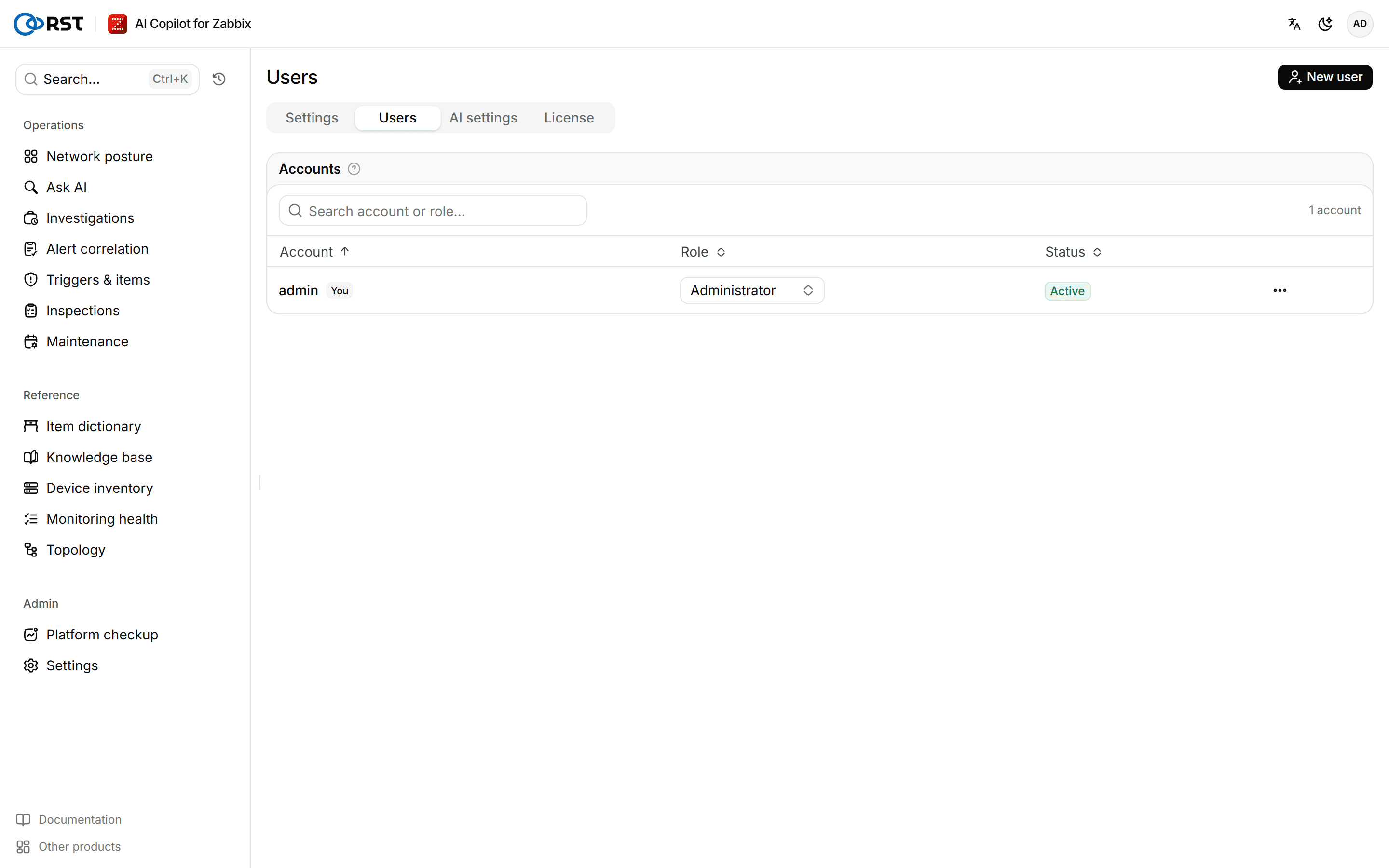
Accounts are stored in state/users.db on the gateway; include it in your backups, see Upgrade, rollback and backup. A standard deployment has password sign-in on. If it is off (for example with SSO), the page says no account can be added. To turn it on, set RST_LOGIN_ENABLED=1 or RST_ADMIN_PASSWORD_HASH in .env and restart the gateway; see the configuration reference.
Create a user
Prerequisites
- The administrator role.
- A free seat. Community has 1 user; on Professional and Enterprise, enabled accounts cannot exceed the licensed user count; a trial allows up to 10 enabled accounts. When the seats are full, Create or Enable opens an upgrade dialog.
Steps
- Select New user.
- Enter the Account and an Initial password (at least 8 characters), and pick a Role.
- Select Create.
The gateway sends no email. Give the user the initial password; they change it on the Account page after signing in.
Manage existing accounts
On the account's row:
- Change the Role. It applies immediately, with no re-login.
- Select Disable. Every session of that account ends. The account is kept and can be turned back on with Enable.
- Select Reset password and enter a New password. Every session of that account ends, and the user signs in again with the new password.
- Select Delete. The account can no longer sign in, every session ends, and this cannot be undone.
You cannot disable or delete the account you are signed in with. The last administrator cannot be disabled, demoted or deleted.
Roles
| Role | Permissions |
|---|---|
| Administrator | Everything, including settings, the Zabbix connection, inspection setup, notification channels, AI settings, knowledge base uploads, users, the license and the audit log |
| Analyst | Queries, AI analysis, alert correlation and fault investigation. Can acknowledge or close Zabbix problems, create triggers and maintenance windows, run remote ping / traceroute, push findings, and run inspections and baselines by hand. Cannot change gateway configuration |
| Viewer | Queries and every operations page, CSV export, AI analysis. Cannot write to Zabbix or push anything |
| Auditor | Can only view and export the audit log; sees no operations pages or configuration |
An administrator can switch off the analyst's Zabbix write actions and the viewer's AI analysis under Role permissions in Settings.
Auditors and separation of duties
The auditor role and separation of duties are Enterprise features. They meet the separation-of-duties requirement of China's MLPS 2.0, where the system administrator, security administrator and audit administrator are different people.
- Without an Enterprise license, the auditor role cannot be picked.
- Separation of duties is off by default, and administrators can read the audit log. When it is on, only auditors can read it; administrators cannot. The switch is under Permissions in Settings.
- Create the auditor account before turning separation of duties on.
With SSO, the auditor role comes from an IdP group mapping; see SSO.
More enabled accounts than seats
When a license expires, or is replaced by one with fewer users, enabled accounts can exceed the seats. Only administrators can then sign in; other accounts are told that more accounts are enabled than the license allows (code seats_exceeded_admin_only). Accounts and data are kept. Renewing, or disabling the extra accounts, restores access.
Settings
Zabbix connection test, host group allowlist, field masking mode, switching off write actions per role, separation of duties, version updates and content packs. Changes apply as soon as they are saved. Available in every edition; separation of duties needs Enterprise.
AI settings
The LLM providers the gateway uses, reasoning effort, failover order, the knowledge base embedding model, field masking before data reaches the model, and failed cases. Available in every edition; multi-provider failover needs Enterprise.