

Ask AI
Ask Zabbix questions in plain language. The gateway turns each question into a read-only Zabbix API call, runs it and returns a result table; follow-up questions continue the same conversation. All editions.
Ask AI turns a plain-language question into a Zabbix API call (JSON-RPC), runs it and returns a result table. It is the home page after sign-in and is available in every edition.
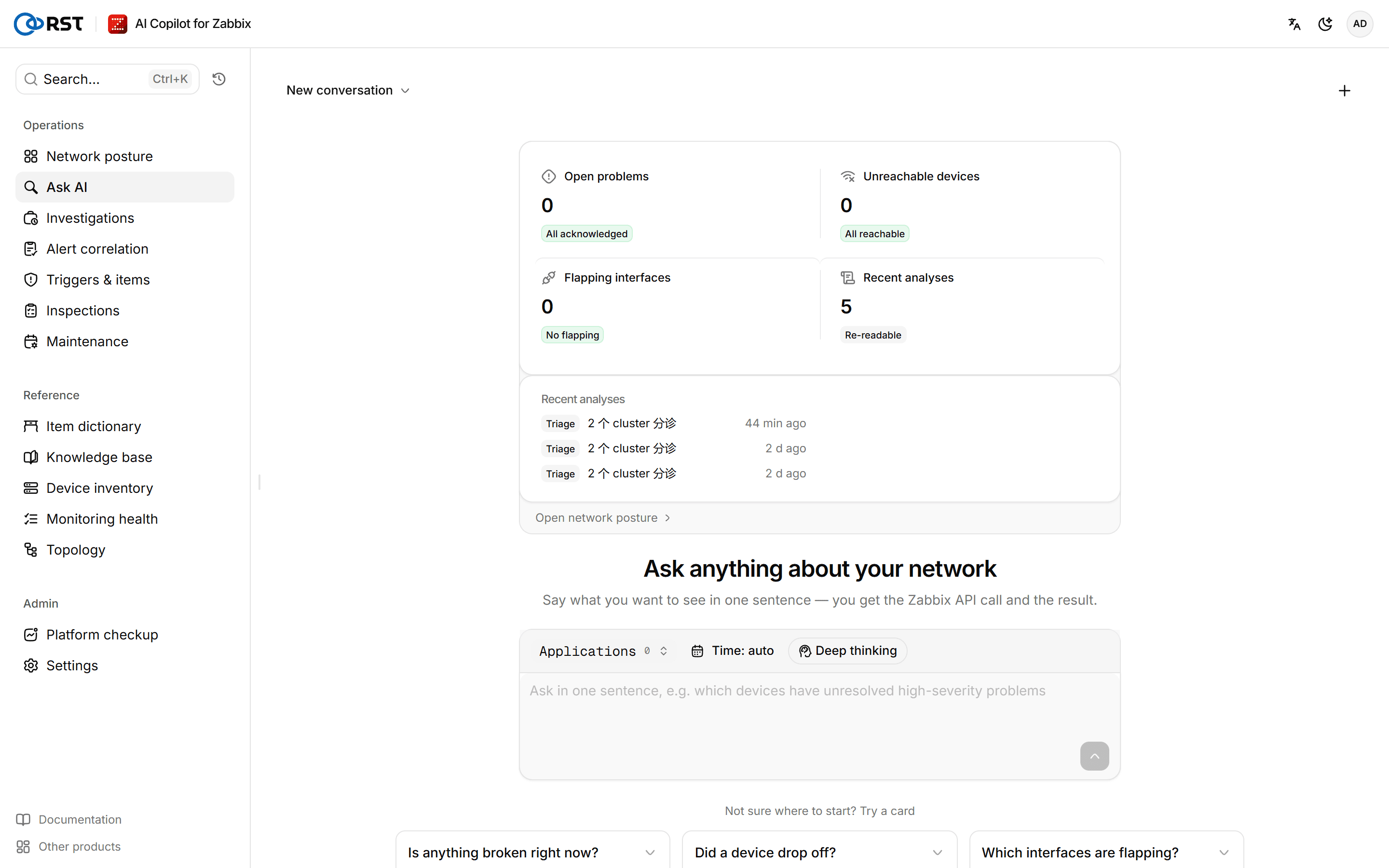
The top of the home page is an operating overview: Open problems, Unreachable devices, Flapping interfaces (last 24 h) and Recent analyses, followed by Recent problems and Recent analyses lists. Select a problem to ask about it directly, or Open network posture to go to Network posture.
How a question is processed
The model can only produce read-only calls. The gateway checks every generated call: the method name must end in .get (apiinfo.version is the only other method allowed), and any method containing a write verb such as .create, .update or .delete is refused. The query is scoped to the selected host group and bound by the host-group allowlist.
When Zabbix rejects a call, the gateway hands the error back to the model for one fix and runs it again; if that works, the result is marked Call auto-repaired. A result returns at most 1,000 rows, set by RST_MAX_RESULT_ROWS; beyond that it is marked Result truncated.
Data sent to the model is masked first according to the masking level in Settings. The result table shows the original values returned by Zabbix.
Run a query
Prerequisites
- The gateway is connected to Zabbix.
- The host group you query is inside the host-group allowlist.
Steps
- Next to the input box, select a Host group.
- (Optional) Pick a time range. With Time: auto, the time in your question is used. A range you pick overrides the time in the question.
- Type the question and send it, for example "which devices have unresolved high-severity problems".
While it works, the card shows three stages: Understanding the question, Writing the Zabbix API call and Running the call. With a reasoning model, its reasoning is folded under AI is thinking.
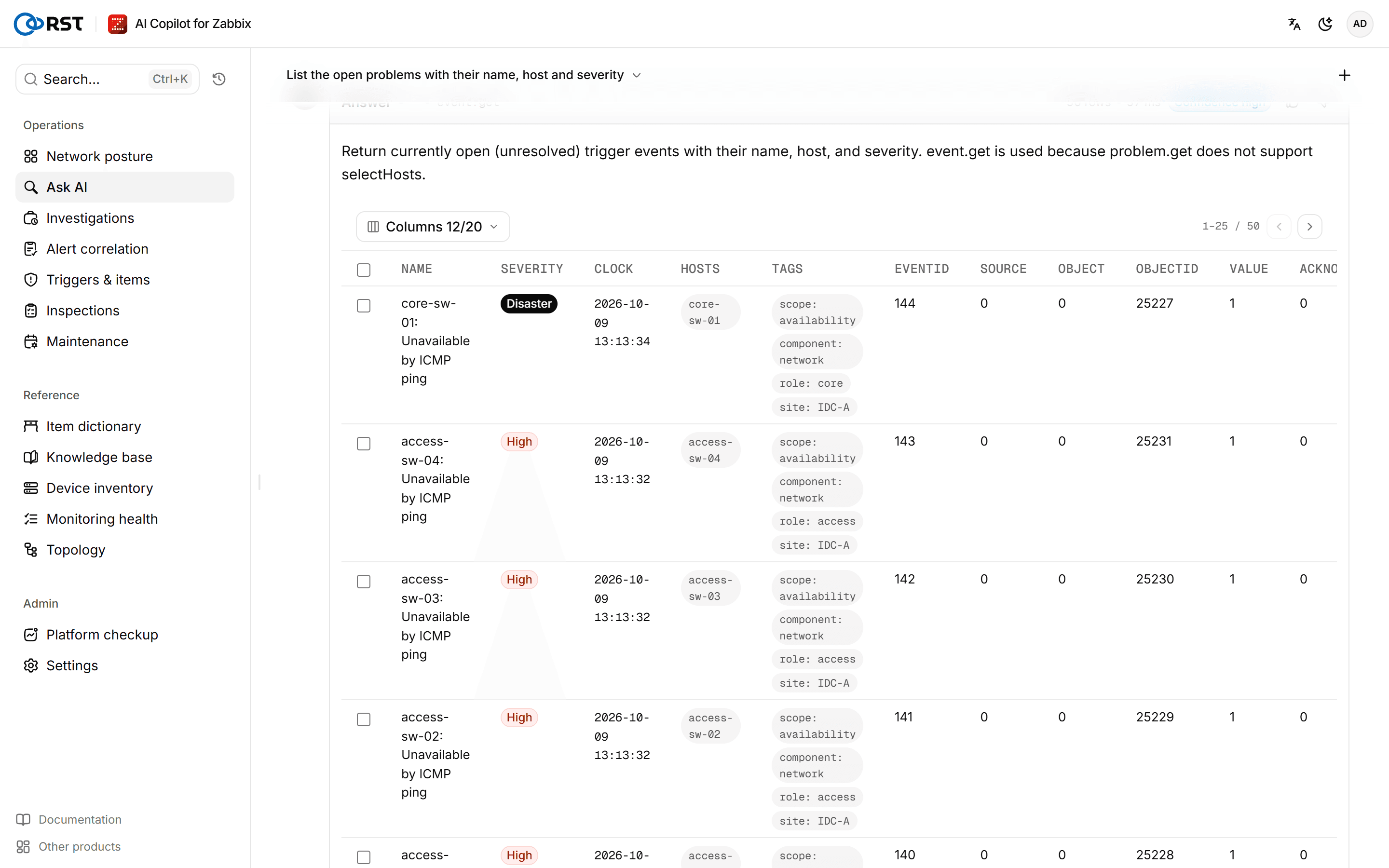
The card header shows the row count and Confidence. At high, use the result as is. At medium, open the generated call and check its conditions. At low, rephrase the question. Time-series results also get a trend chart.
The time window actually used is noted above the result, for example From the question: last 1 hour or The selected time range replaced the time in the question.
The starter questions on the home page come in six groups: is anything broken right now, did a device drop off, which interfaces are flapping, is a link saturated, is a device running out of headroom, and are alerts too noisy. Select a group to see four ways to ask, and select one to send it. You can also select Ask AI for a few more angles, or None of these. Let me write my own….
Check and edit the generated call
Steps
- Below the result card, select Show the generated Zabbix API call.
- Edit the call and run it.
An edited call is marked Edited on the card. In the same place you can select Open in Zabbix to open the matching page in the Zabbix frontend, or Save as quick query and give it a name. Saved queries appear under My saved queries on a new conversation; selecting one replays the saved call without calling the model.
If a call fails, select Retry, or Let the AI fix it using the error.
Work with the results
| Action | What it does | Needs |
|---|---|---|
| Explain these results | The model summarizes the result, with What stands out and Ask next questions; select one to ask it | |
| Send to triage | Hands the result rows to Alert correlation | Professional or above |
| Turn into a trigger | Takes the question to Triggers & items | Professional or above; analyst or administrator |
| Export CSV | Exports the current table as CSV | |
| Explain a row | The model explains that row. From the explanation, Open in problem investigation starts a problem investigation | Investigation needs Professional or above |
| Feedback | Mark the call right or wrong. For a wrong call you can say why and paste the correct Zabbix API call (JSON); similar questions use it next time |
Acknowledge problems from the results
When the result is a list of open problem events, each row has acknowledge and close buttons. Select several rows to acknowledge them, or acknowledge and close them, in one step.
Prerequisites
- Analyst or administrator role, and the administrator has not taken the acknowledge permission away from that role.
- The Zabbix API account the gateway uses has write rights on these hosts.
- To close a problem, its trigger must allow manual close.
Steps
- In the result table, select acknowledge on a row, or select several rows and acknowledge them together.
- To close the problem as well, select close, then select it again within 4 seconds to confirm.
The acknowledgement is written with Zabbix event.acknowledge and appears in Zabbix under the gateway's API account; the actual user is recorded in the Audit log.
Follow-up questions and conversations
Follow-up questions in the same conversation keep the previous context, so references such as "the first device" or "that interface" work. To change topic, select New conversation.
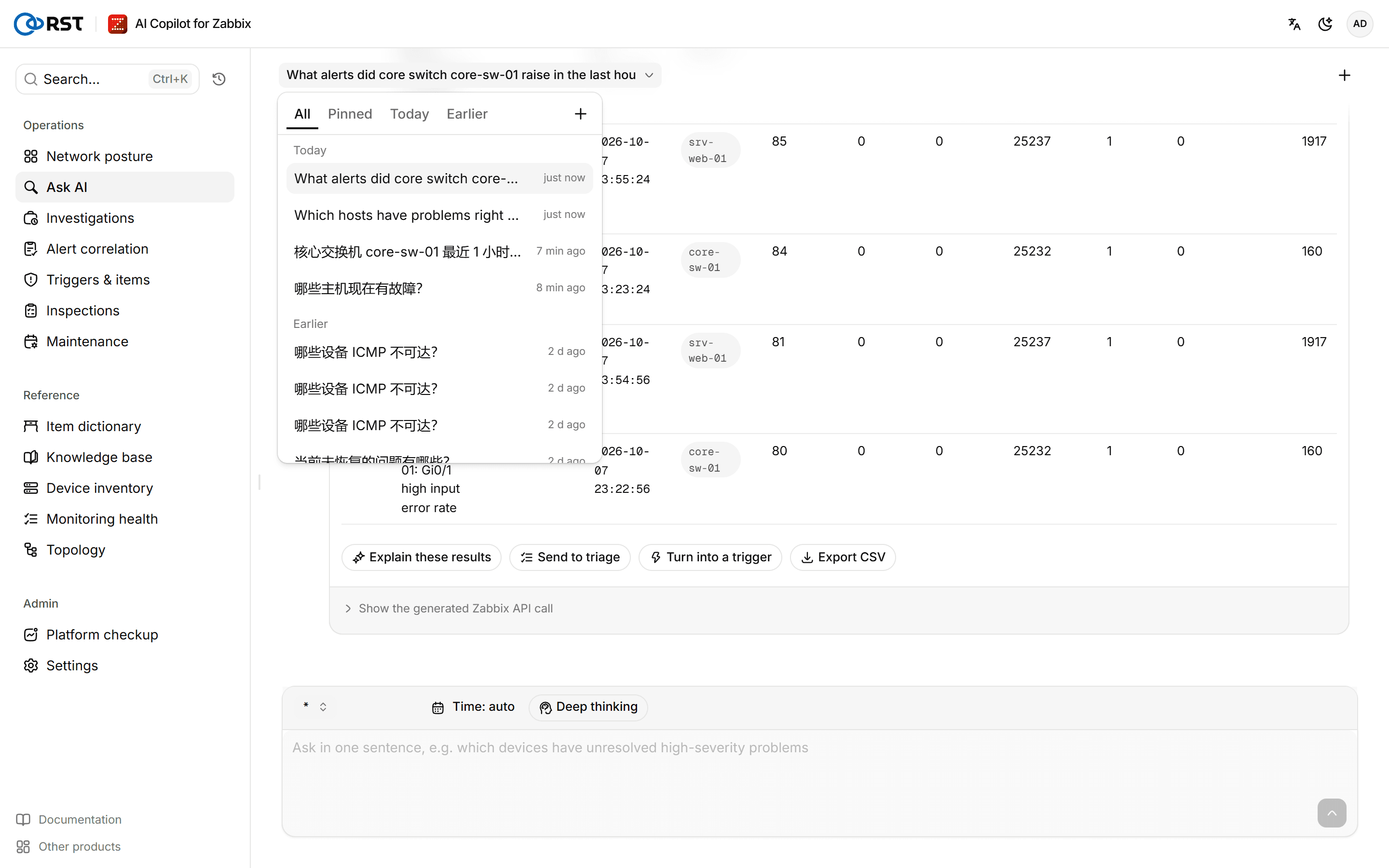
Conversations are stored on the gateway and can be continued after signing in from another browser. Select the current conversation's title to open the conversation list, grouped into Today and Earlier; one still generating is marked In progress. Opening an old conversation replays its calls and results without running them again. A conversation expires 7 days after its last activity, set by RST_CONVERSATION_TTL_DAYS. Each account can delete its own conversations.
The Conversations tab on Investigations also leads here.
When the result is empty
The card says Nothing matched. Open the generated call and check the host group, item key and time conditions, or ask again with another time range. Zabbix also returns an empty result, not a permission error, when the gateway's API account cannot read the hosts; see Zabbix permissions.
UI overview
The sidebar groups and in-page tabs, the command palette, the account menu and roles, and global banners.
Investigations
Automatic archive of problem investigations and alert correlations, kept per account, with follow-up questions about a device and pushing a finding to notification channels. All editions.