

Item dictionary
List the item keys in a host group with value types, latest values and distinct-value counts; copy them into a question or insert them into a chat query. Available in every edition.
The item dictionary helps you find the exact item key before you ask a question. It sits in the Reference group of the sidebar. It only reads items through the Zabbix item.get method and calls no model.
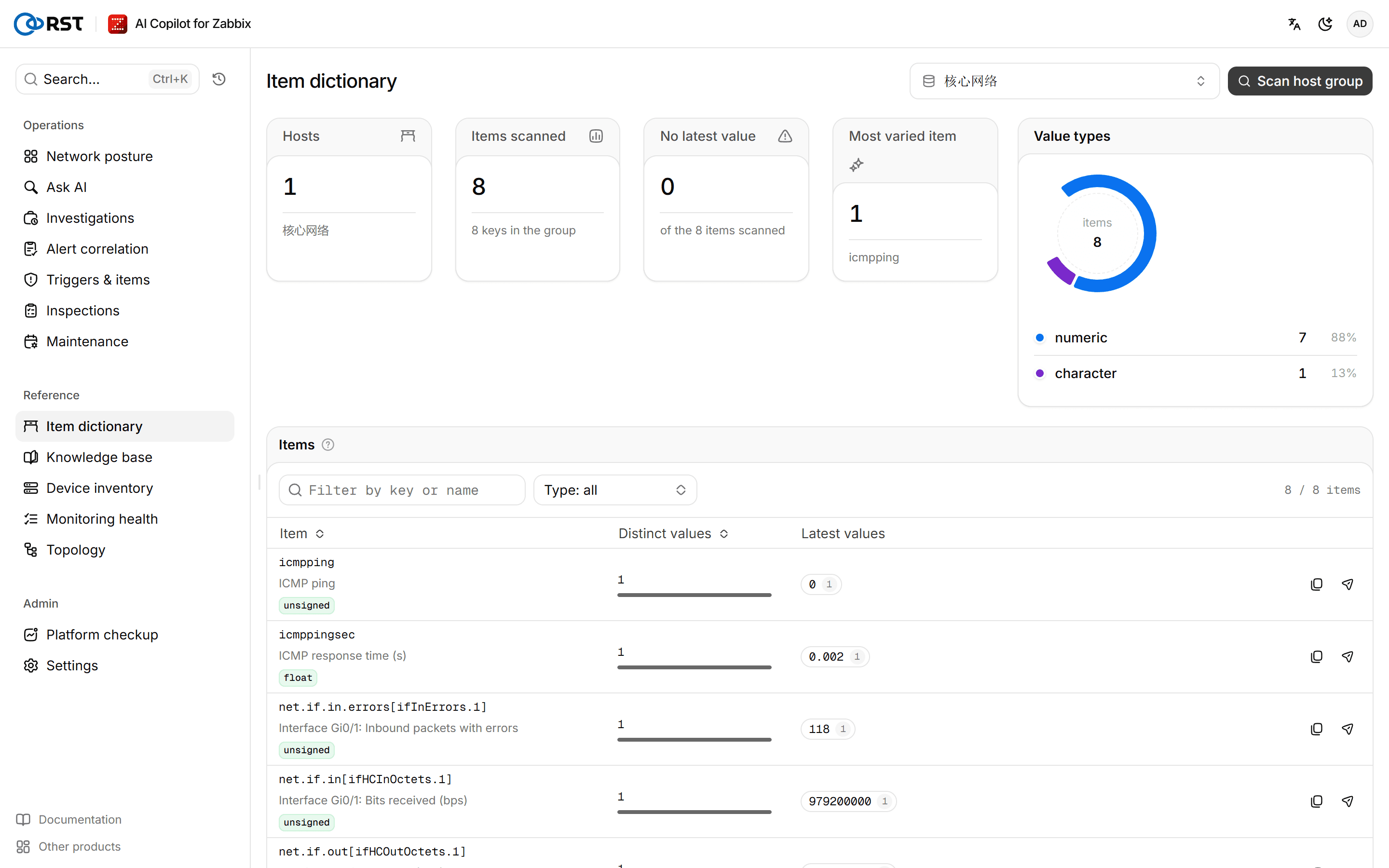
Scan a host group
Steps
- Open Item dictionary and enter a host group name. Wildcards are allowed, for example
Linux *. If nothing comes to mind, pick one of the suggested host groups. - Select Scan host group.
Scan overview shows the number of Hosts, Items scanned, the items with No latest value, the Most varied item and the Value types breakdown.
One scan lists at most RST_FIELD_DICT_MAX keys, 500 by default. Above that the page shows First batch only; narrow the host group and scan again. If the host group has no enabled items, the page says so.
Find an item
The Items table has one row per item key, with its Distinct values and Latest values. Latest values are ordered by how many hosts report them.
- Type a keyword in Filter by key or name.
- Pick numeric, character, text, log or other in Filter by value type.
Use an item in a query
On the item's row:
- Select one of the latest values to copy it as
key:"value", ready to paste into a question. - Select Copy key to copy only the key.
- Select Insert into a query. The gateway writes a question asking for that item's history over the last hour and stages it for the chat. Open Ask AI to send or edit it.
Device inventory
Lists every device with Zabbix hosts as the source of truth, enriches them from a CSV with criticality, owner and department that Zabbix does not hold, and finds devices missing from Zabbix. Administrators only. All editions.
Knowledge base
Upload runbooks and SOPs; problem investigation, alert correlation, result explanations, trigger generation and the platform checkup retrieve and cite them. Needs an embedding model. Available in every edition.