

Inspections
Scheduled inspections by host group and check: metric thresholds, host availability and open problems, compared with the previous run, written up with AI suggestions and delivered. Professional and above.
An inspection checks a set of hosts on a cron schedule. Every run writes a report and pushes it to a chat bot or mailbox; a report that crosses the threshold is flagged red. Inspections sit in the Operations group of the sidebar. Manual runs, scheduled runs and the report history belong to the reports feature and need a Professional or Enterprise license, including a trial. Without one you can browse and configure inspections, and running one opens the upgrade dialog.
Changing the inspection configuration needs the administrator role. Run now needs the analyst or administrator role.
Add a check
A check is the smallest unit of an inspection. A task runs it only once you tick it in that task.
Steps
-
On the Checks tab, select New check.
-
Enter an ID and pick a Type:
Type What it checks Metric threshold The latest value of an item key against a threshold Host availability Whether every interface of a host is unreachable Problem summary Lists the problems that are still open -
A metric threshold needs an Item key. Select Load keys to fetch keys from Zabbix and pick one from the input's suggestions.
-
Pick the Compare operator, enter the Threshold and pick the Severity: critical, high, medium or low.
-
(Optional) Enter a Host group. Leave it empty to use the task's host group.
-
Select Add.
Set up a report template
A report template decides which sections a report has, when it counts as over threshold, and the tone of the AI suggestions.
| Field | Description |
|---|---|
| Report title | Title of the report and the pushed card |
| Sections | Overview, Change since last run (new, resolved and persisting findings), Findings, Problems, AI suggestions |
| Alert level | When there are findings at or above this level, the report is marked Over threshold and the pushed card turns red |
| AI tone | The system prompt used when writing the suggestions |
The model writes the AI suggestions from this run's findings and the change since the last run. If the model call fails, the report is still produced and the suggestions section says so.
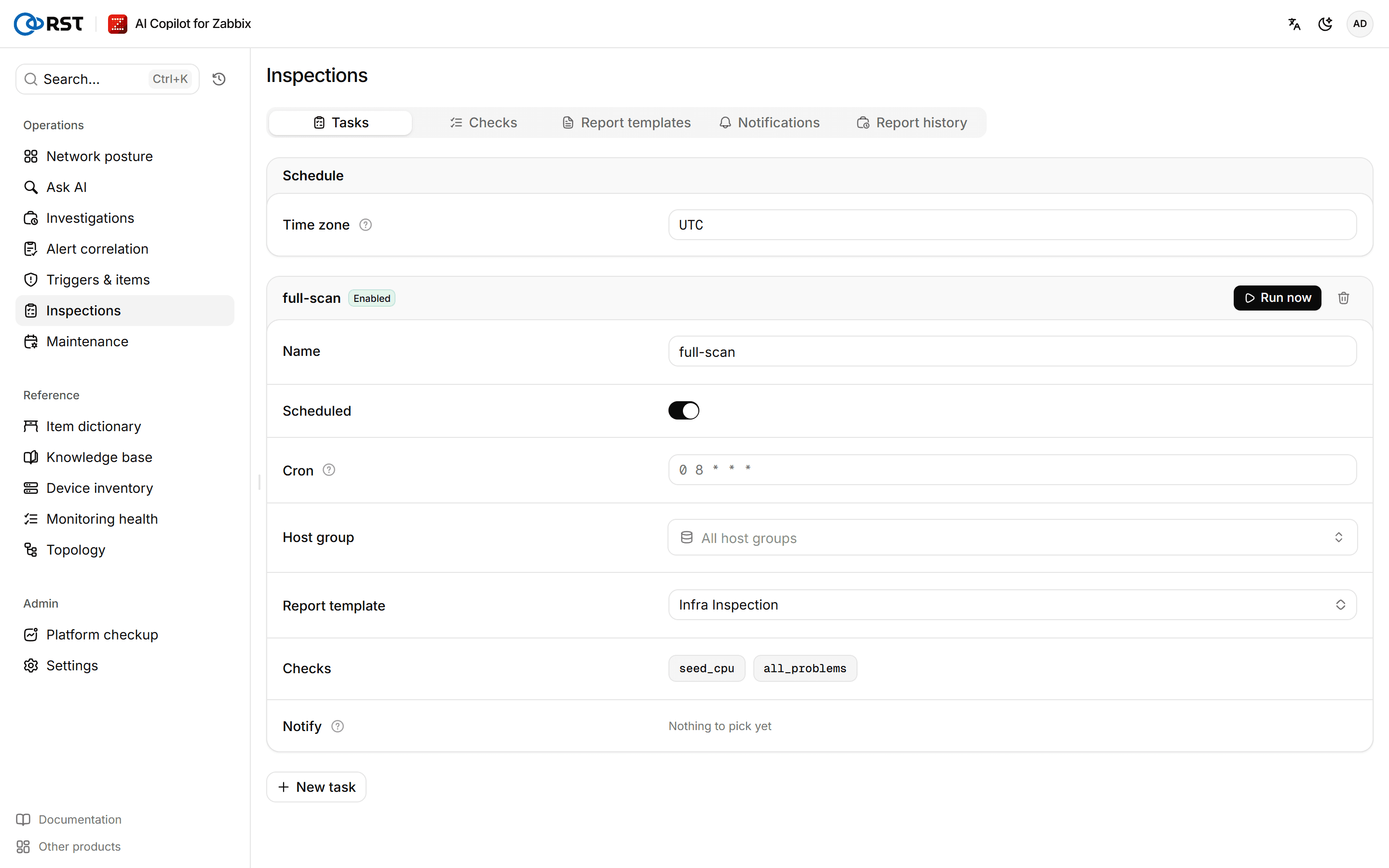
Create an inspection task
Steps
- On the Tasks tab, set the Time zone. Cron expressions are read in this zone; leave it empty for UTC.
- Select New task and enter a Name, for example "Daily core network check".
- Enter the Cron expression in five fields, for example
0 8 * * *for 08:00 every day. Leave it empty to run the task manually only. - Pick the Host group (or All host groups), the Report template and the Checks to run.
- Under Notify, pick where to push the report.
- Turn on Scheduled.
- Select Save and apply. The scheduler reloads immediately.
After saving a new task, select Run now to try it once.
Choose where reports go
Notify offers two kinds of target:
- Destinations from Outbound channels: Feishu, DingTalk, WeCom, Teams, Slack or email. Delivery goes through the shared queue, retries on failure and shows up in the delivery log. Use these for new setups.
- Inspection-only Feishu webhooks on the Notifications tab. This is the older way of configuring delivery and still works.
The URLs and signing secrets of inspection-only webhooks are stored encrypted and never shown after saving: a set webhook shows only its host ("Set (host) — leave empty to keep it"), and a saved secret is never shown, so leave it empty to keep it. Check Clear the stored secret (switch to unsigned) to drop signing. Records saved in plain text before the upgrade are encrypted the next time the inspection configuration is saved.
Read inspection reports
The Report history tab lists every run. Select View to open a report, then Copy Markdown or Download .md. The Inspection reports tab of Reports shows the same history.
| Result | Meaning |
|---|---|
| OK | No finding reached the template's alert level |
| Partly failed | Some checks failed to run; the rest are fine |
| Over threshold | There are findings, and the highest is at or above the template's alert level |
Reports
Daily, weekly and monthly reports: problem counts, time to resolve, device availability, link capacity and fill-up forecast, SLA compliance and AI usage. Generate on demand, or on a schedule with archiving and delivery. Professional and above.
Platform checkup
A check-up of Zabbix itself: version, self-monitoring data, monitoring queue, process busy, cache usage, HA nodes, proxy status and unsupported items. The AI read groups failing checks by cause and orders the fixes. Professional and above.