

Outbound channels
Push reports, problems and inspection results to Feishu, DingTalk, WeCom, Teams, Slack or email: destinations, mail server, the private IM host allowlist and the delivery log. Failed deliveries retry automatically and can be resent. Available in every edition.
Outbound channels is the gateway's way out for messages. It is a tab of the Platform checkup page and is available in every edition. Changing it needs the administrator role.
Messages sent from here:
- Scheduled reports, to the destinations bound to that period.
- New problems at or above a destination's alert threshold, to that destination.
- Findings pushed from fault investigation and escalations from alert correlation, pushed by hand by an analyst or administrator.
- Inspection reports, to the destinations picked in the task.
Content sent outside is masked according to the current field masking mode.
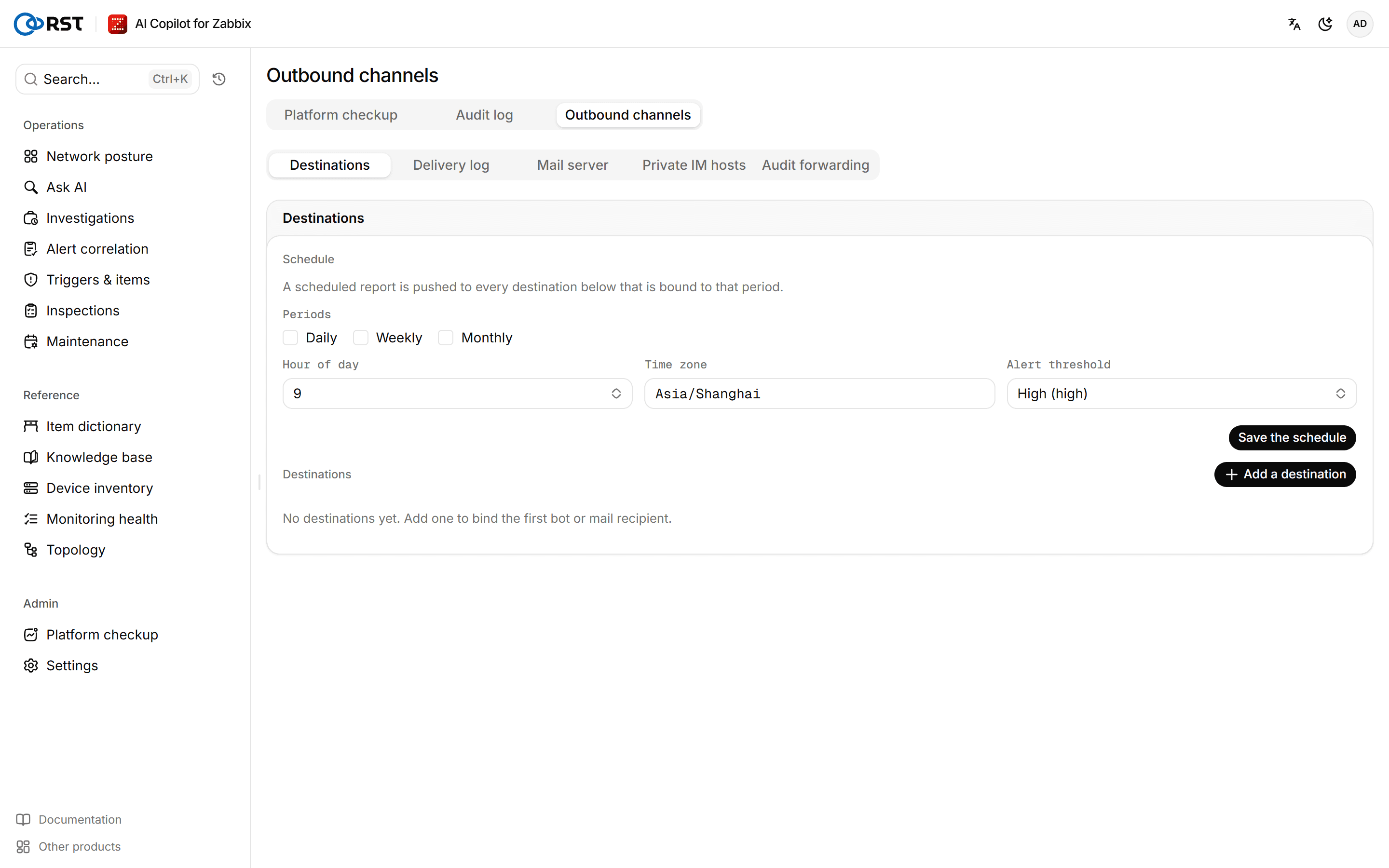
Add a destination
Prerequisites
- The administrator role.
- For email, a configured mail server; see below.
- For an IM system inside your network, its address on the allowlist; see below.
Steps
- On the Destinations tab, select Add a destination.
- Pick the Channel: Feishu, DingTalk, WeCom, Teams, Slack or Email, and enter a Name.
- Enter the webhook URL of the group bot or Incoming Webhook. If a Feishu or DingTalk bot has signature checking on, enter the Signing secret. For email, enter the Recipients instead, separated by commas, semicolons or line breaks.
- Under Bound periods, pick which reports it receives: daily, weekly, monthly.
- Pick the Alert threshold: Info, Low, Medium, High or Critical; High by default. New problems at or above it are pushed to this destination.
- Make sure Enable this destination is checked, and save.
- Select Send a test on the destination to confirm the message arrives.
Webhook URLs and signing secrets are stored encrypted on the gateway and are never shown again after saving. When you edit a destination, the webhook field shows only the host ("Set (host) — leave empty to keep it"), and an empty signing secret keeps the saved one. To stop signing, check Clear the stored secret (switch to unsigned). Records saved in plain text before the upgrade are encrypted the next time any outbound channel setting is saved.
After a reinstall the old ciphertext cannot be opened; the destination shows Secret invalid, and re-entering the secret fixes it.
A deleted destination stops receiving reports and alerts at once; its past deliveries are kept.
Set the delivery schedule
The Schedule block at the top of the Destinations tab decides when scheduled reports are generated and pushed.
Steps
- Under Periods, pick daily, weekly and/or monthly.
- Pick the Hour of day and enter the Time zone, for example
Asia/Shanghai. - Select Save the schedule.
The schedule takes effect as soon as it is saved: the daily report runs every day, the weekly report on Mondays and the monthly report on the 1st, at that hour, and each is pushed to the destinations bound to its period. With no period picked, the gateway's RST_REPORT_SCHEDULE environment variable decides; see Reports. Scheduled reports need a Professional or Enterprise license.
Configure the mail server
There is one mail server for the whole deployment, shared by every email destination.
Steps
- On the Mail server tab, enter the Server and pick the Encryption. The port follows the encryption, unless you changed the port yourself.
- Enter the Username and Password (an app password or authorisation code). Leave the username empty if the server needs no authentication.
- Enter the From address and From name, and save.
- Create an email destination under Destinations and check the setup with its Send a test.
Saving only checks the format; only a test send shows whether mail actually goes out. Without a mail server, email destinations keep failing and the reason only shows in the delivery log.
Add private IM hosts
By default each channel posts only to its official domains:
| Channel | Official domains |
|---|---|
| Feishu | open.feishu.cn, open.larksuite.com |
| DingTalk | oapi.dingtalk.com |
| WeCom | qyapi.weixin.qq.com |
| Slack | hooks.slack.com |
| Teams | *.webhook.office.com, outlook.office.com, outlook.office365.com, *.logic.azure.com, *.logic.azure.us |
A privately deployed Feishu, WeCom or other IM needs its address on the allowlist.
Steps
- On the Private IM hosts tab, find the channel.
- Enter one host name, IP or CIDR per line, for example
im.corp.localor10.20.0.0/24. - Select Save allowlist.
At send time the gateway resolves the host name and checks every address it resolves to: a private address passes only if that IP or its range is on the list. Cloud metadata addresses (such as 169.254.0.0/16) are always refused, whatever is configured.
Resend failed messages
The Delivery log tab lists each message's kind, channel, destination, status, attempts and last error.
| Status | Meaning |
|---|---|
| Queued | Waiting to be sent |
| Sending | Being delivered |
| Delivered | Sent successfully |
| Will retry | Failed; retried automatically with backoff, starting at 30 seconds and doubling each time |
| Given up | Still failing after 6 attempts, or hit an error that cannot be retried |
Steps
- In Delivery log, filter by Given up.
- Fix the configuration according to Last error, then select Resend.
Resending needs the analyst or administrator role.
Audit forwarding
The Audit forwarding tab holds the audit log switch and forwarding to syslog or a webhook. It has nothing to do with the destinations above. Forwarding to an external SIEM is an Enterprise feature.
Audit log
Records of sign-ins, queries, model calls, Zabbix write actions, and user and license changes: who, when, host group, action, outcome and latency. Filter and export to CSV, and export EULA acceptances. The local audit log is in every edition; forwarding to a SIEM needs Enterprise.
Account
Profile and password change, interface language and theme, default host group, rows per page and remembered columns. Saved immediately and kept with the account. Available in every edition.