

Account
Profile and password change, interface language and theme, default host group, rows per page and remembered columns. Saved immediately and kept with the account. Available in every edition.
The account page opens from the account menu at the top right. It has two tabs, Profile and Preferences, and only changes the signed-in account. Creating accounts, changing roles and disabling accounts are done by an administrator on the Users page.
Preferences are saved on the gateway immediately and follow you to other browsers. If the gateway is briefly unreachable, they are kept in the current browser and synced once it is back; meanwhile the navigation bar shows Not synced.
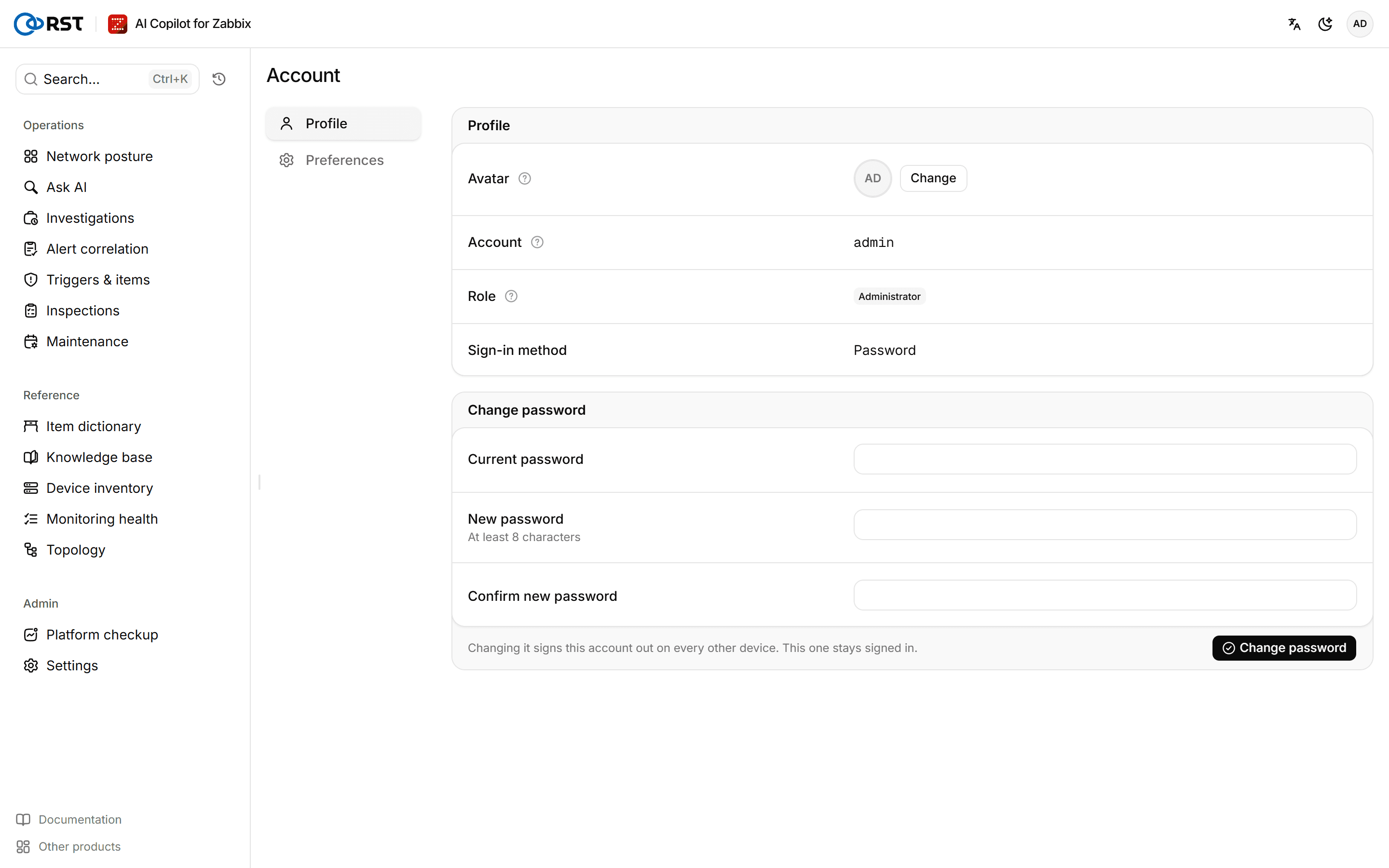
Profile
Account, Role and Sign-in method on Profile are read-only. The account name is assigned by an administrator. The sign-in method is one of Password, Single sign-on, Reverse-proxy identity or Ops token.
The Avatar is scaled to 96×96 and stored in your own preferences.
Change your password
Prerequisites
- An account that signs in with a password. Accounts signing in through single sign-on or a reverse-proxy identity have no password on the gateway; change it in your identity system.
Steps
- Under Change password on the Profile tab, enter the Current password, a New password (at least 8 characters) and Confirm new password.
- Select Change password.
Afterwards every sign-in of this account on other devices ends; the current device stays signed in.
Set preferences
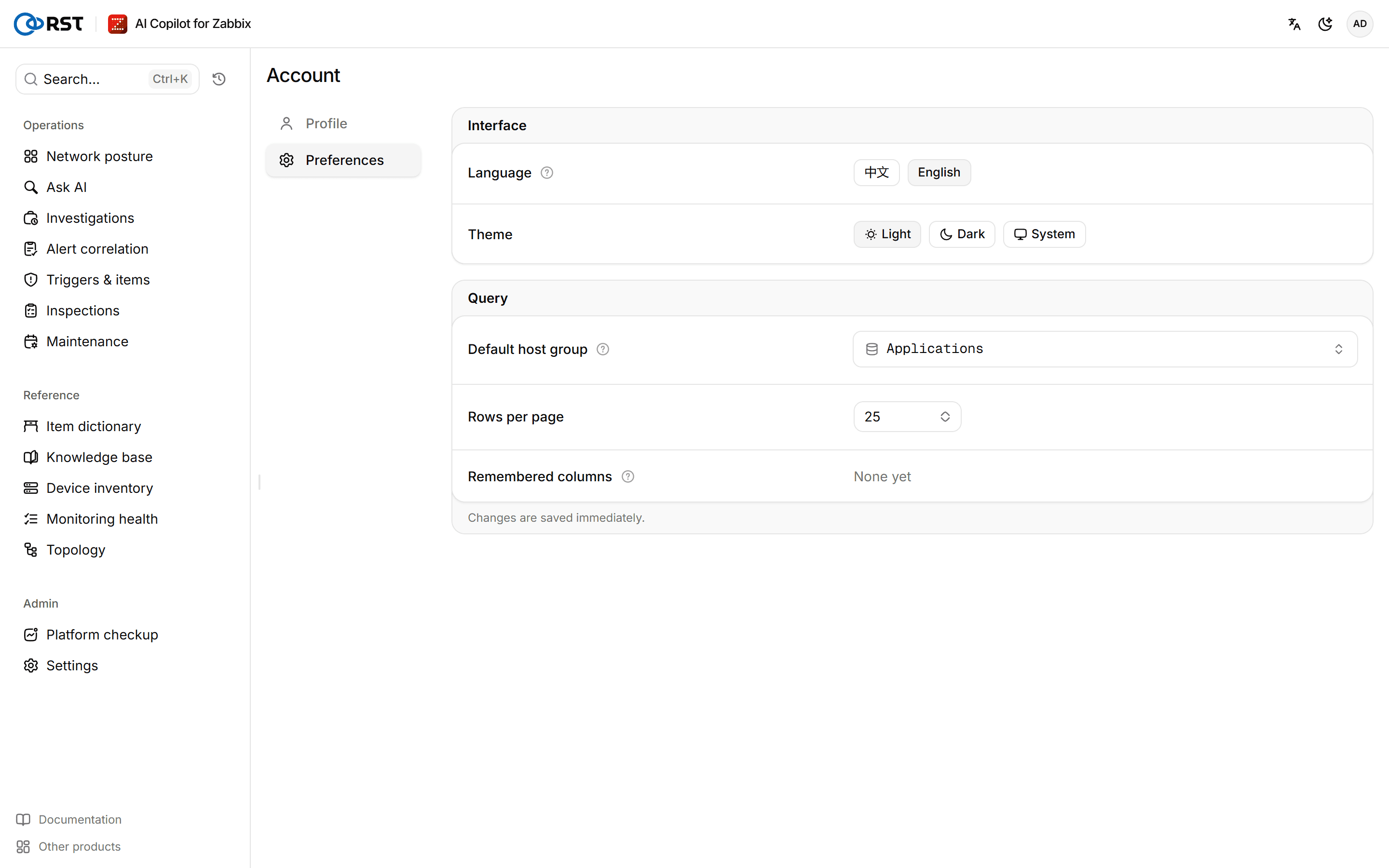
Changes on the Preferences tab are saved immediately:
| Setting | Description |
|---|---|
| Language | 中文 or English. AI-generated analysis, reports and the platform checkup follow it too |
| Theme | Light, dark or System |
| Default host group | Preselected when you open the chat, triggers and other host-group pages. Leave it empty to pick each time |
| Rows per page | Rows shown per page in result tables |
| Remembered columns | The columns you picked in result tables, kept per host group. Select Reset all to clear them |
Outbound channels
Push reports, problems and inspection results to Feishu, DingTalk, WeCom, Teams, Slack or email: destinations, mail server, the private IM host allowlist and the delivery log. Failed deliveries retry automatically and can be resent. Available in every edition.
FAQ
Failed installs, Zabbix unreachable or unsupported, model call failures, activation failures, locked paid features, seat limits, content packs not applied, no new version in online update. Causes and fixes by symptom.