

Outbound channels
Push reports and high-severity alerts to Feishu, DingTalk, WeCom, Teams, Slack, or email. Destinations, periods and alert threshold, mail server; failed deliveries retry and can be resent.
Outbound channels is the product's only way to send messages out, available in every edition. It carries scheduled reports, Alerts at or above a threshold, conclusions pushed from an investigation, and escalations from Triage. The page is a top tab of Platform health.

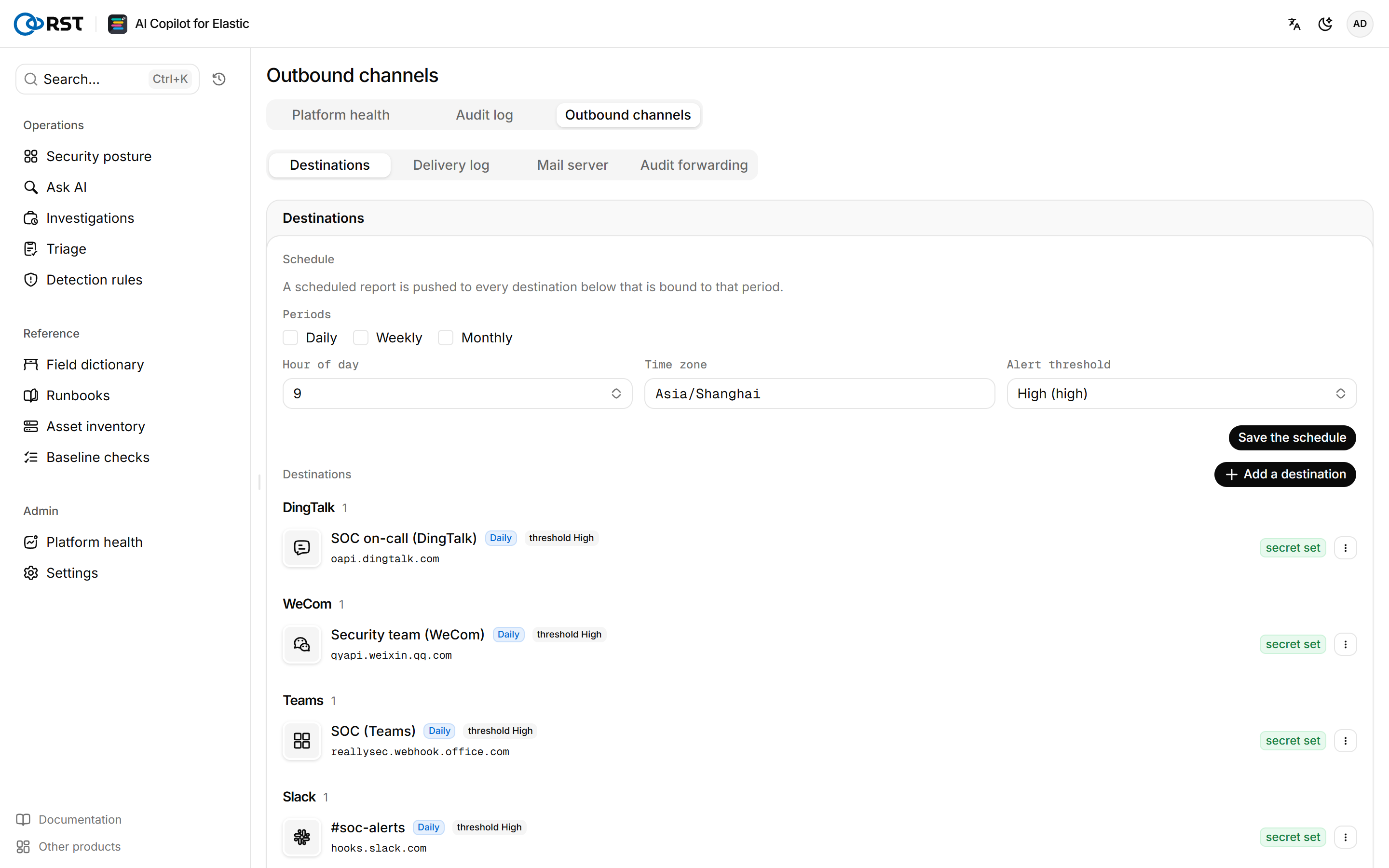
Set the push schedule
Steps
- Open Platform health > Outbound channels.
- Under Schedule, set Periods, Hour of day, and Time zone.
- In Alert threshold, select a severity. New alerts at or above it are pushed automatically.
- Select Save the schedule.
Each scheduled report is pushed to the destinations bound to its period.
Add a destination
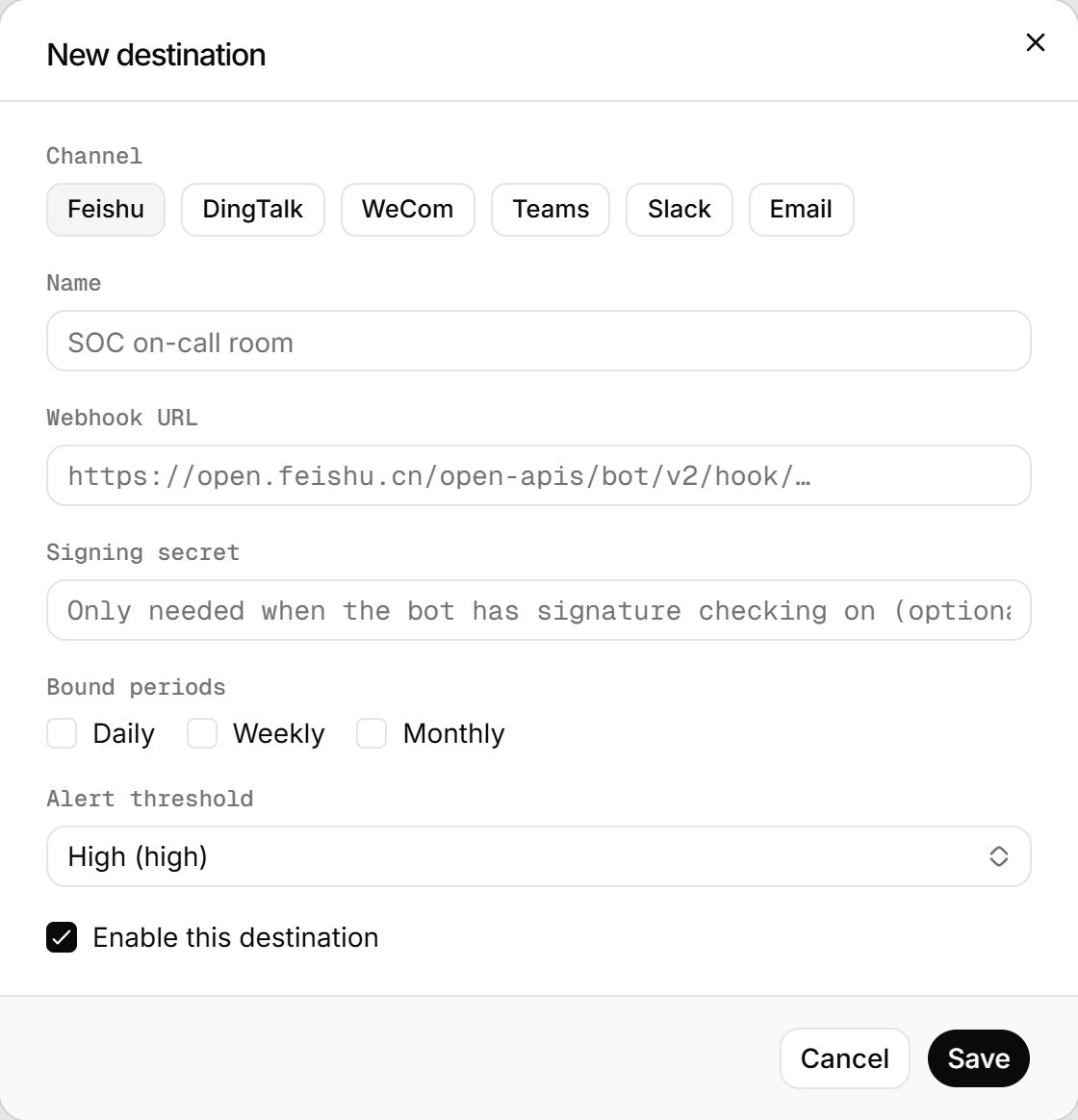
Steps
- On the Destinations tab, select Add a destination.
- Select a Channel and fill in its settings from the table below.
- In Bound periods, select which reports the destination receives.
- After saving, select Send a test on the destination's row to confirm delivery.
| Channel | Settings |
|---|---|
| Feishu, DingTalk | The group bot's webhook URL. If the bot verifies signatures, also the Signing secret |
| WeCom, Teams, Slack | The group bot or incoming webhook URL |
| Recipients, separated by commas, semicolons, or newlines. The sending server is set once on the Mail server tab |
Webhook URLs and secrets are stored encrypted in Elasticsearch. After a gateway reinstall the old ciphertext cannot be opened and the destination shows Secret invalid. Re-enter the secret to restore it.
Configure the mail server
One mail server serves every email destination. Without it, email deliveries keep failing and the reason only appears in the delivery log.
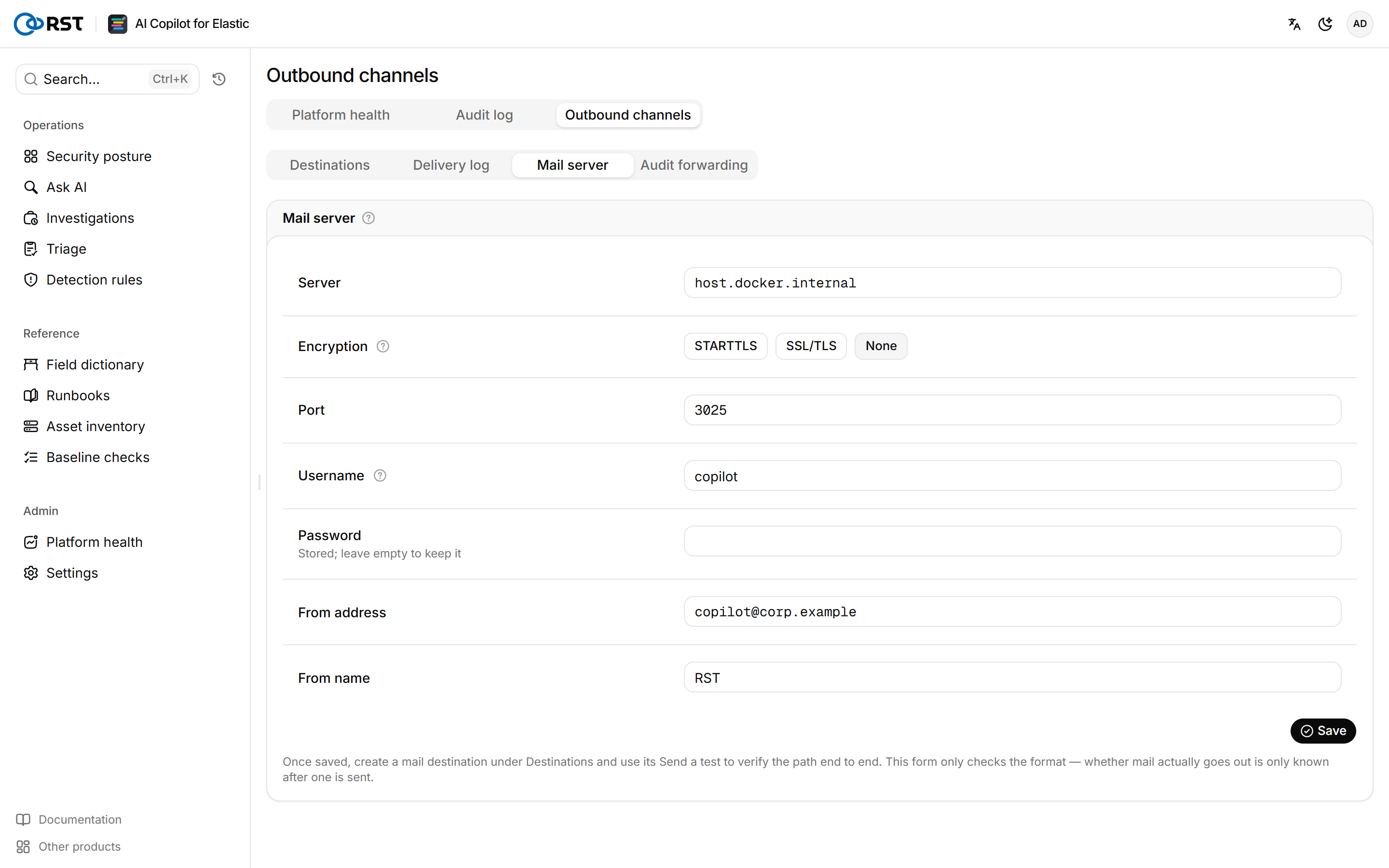
On the Mail server tab, enter the server, credentials, and sender. The Encryption sets the default port unless you changed the port yourself. The Password is usually an app password or authorisation code. Leave Username empty if the server requires no authentication.
Saving only checks the format. Use Send a test on an email destination to prove that mail goes out.
Handle failed deliveries
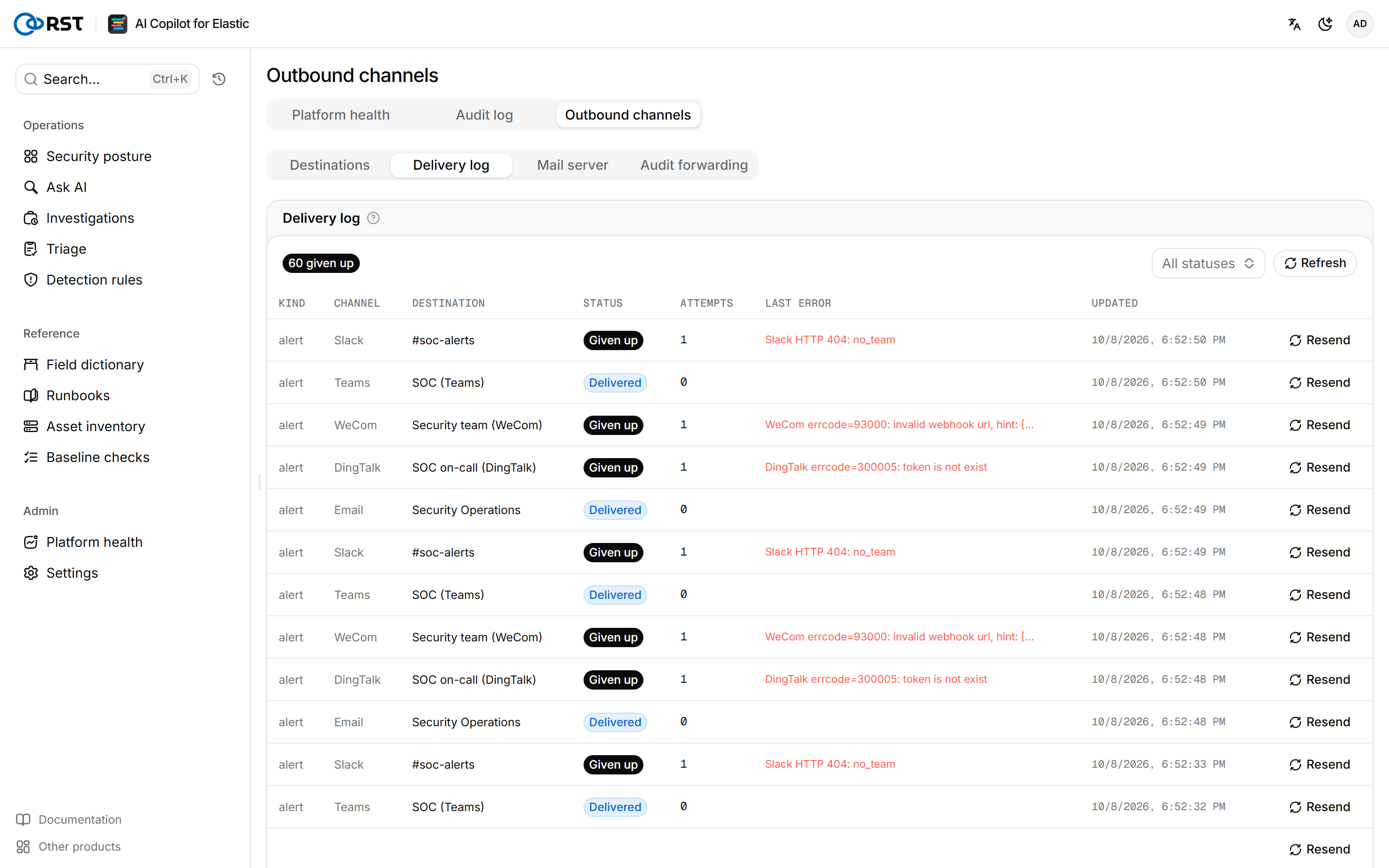
The Delivery log tab lists one row per delivery with kind (report or alert), channel, destination, status, attempts, last error, and update time.
| Status | Meaning |
|---|---|
| Queued | Waiting to send |
| Sending | In progress |
| Delivered | Succeeded |
| Will retry | Failed; retries automatically with backoff |
| Given up | Retries exhausted. Fix the cause named in Last error, then select Resend |
Audit forwarding
The Audit forwarding tab sends Audit log events to syslog or a webhook. It is separate from the destinations on this page.
Audit log
A record of sign-ins, queries, model calls, and settings changes with operator, time, index, action, outcome, and token use. Filter, export, and forward to a SIEM.
Account
Avatar, password, and interface language for the current account, plus the default index and remembered columns for Ask AI. Changes save immediately and follow the account.