

Quick start
Install the gateway on one Linux server, activate the licence, add a vLLM model, create an API key and make the first call.
A single-host install needs one Linux server, Docker and an inference server the gateway can reach. For HTTPS, multiple nodes, single sign-on and every setting, see Installation.
Prerequisites
- Linux on x86_64 or ARM64 (Kylin, UOS, CentOS, Ubuntu and others), at least 2 cores, 4 GB of memory and 50 GB of disk. The gateway needs no GPU.
- Docker 20.10 or later with the docker compose plugin.
- A non-empty
/etc/machine-id. The licence is bound to it; if it is missing, runsystemd-machine-id-setup. - A running vLLM or other OpenAI-compatible inference server whose port the gateway host can reach. You can also start with a cloud model.
- A licence: a licence token for online activation, or a
.licfile for offline activation.
Inbound, only the gateway port 8080 must be open. Online activation needs outbound access to license.reallysec.com:443, and update checks need updates.reallysec.com:443. Air-gapped networks can block both.
Install
Download and extract the package
The package is an offline installer with the images, the compose file, the install script, the GPU node agent and the upgrade helper. Use the arm64 package on ARM servers.
curl -fLO https://updates.reallysec.com/releases/rst-ai-fabric/<version>/rst-ai-fabric-<version>-linux-amd64.tar.gz
tar xzf rst-ai-fabric-<version>-linux-amd64.tar.gz
cd rst-ai-fabric-<version>-linux-amd64
Run the install script
Run it as root so that it also installs the upgrade helper used for one-click upgrades:
sudo ./install.shThe script loads the images, writes .env (random database password and /metrics token, mode 600) and starts the gateway and PostgreSQL. The extracted directory becomes the install directory; run later upgrades and backups from it.
Sign in and change the password
Read the initial administrator password:
docker compose logs rst-ai-fabric | grep passwordOpen http://<host>:8080 and sign in as admin with that password. You must change the password at first sign-in. Then turn on two-factor authentication under Settings > Personal.
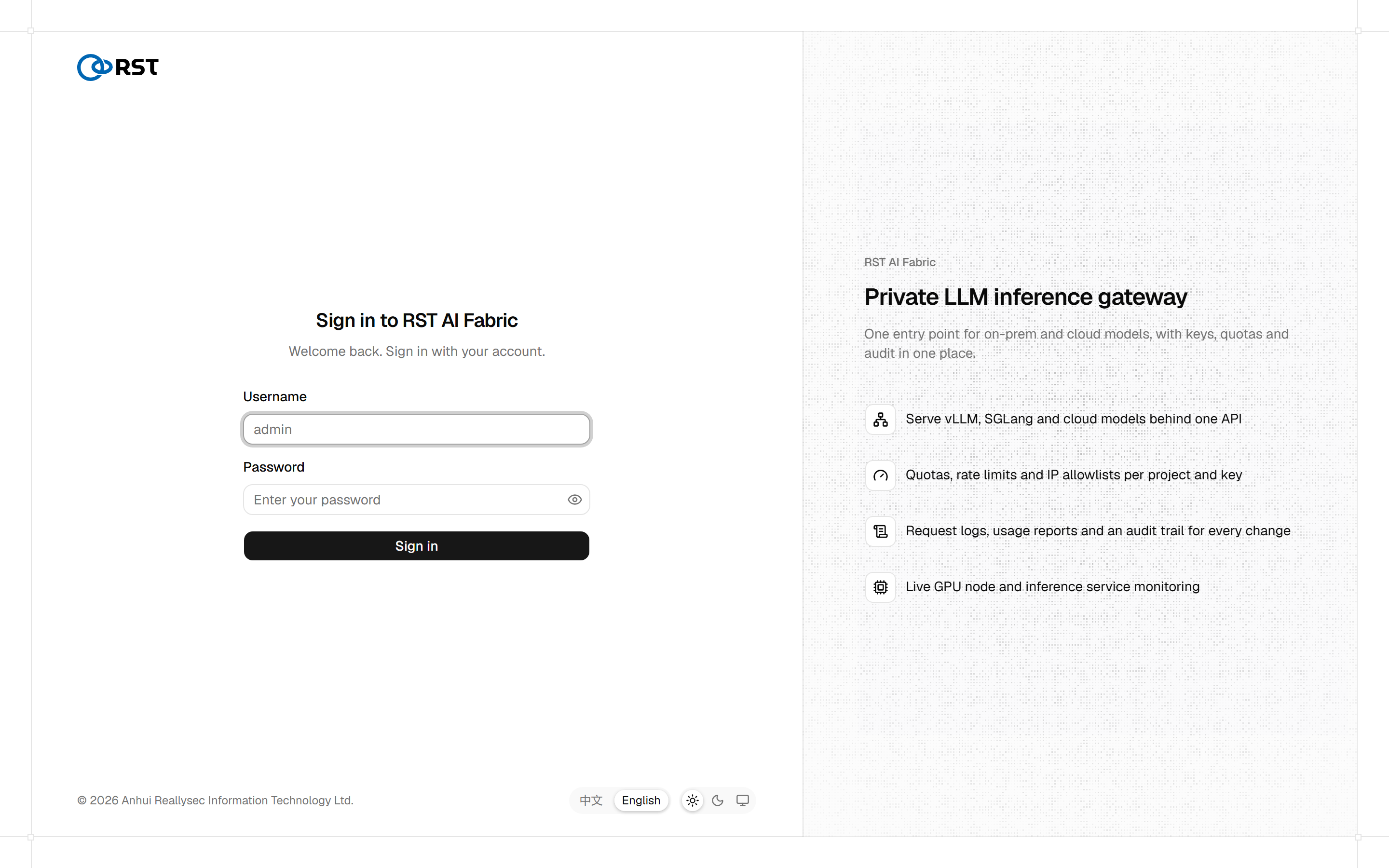
Activate the licence
Open License at the bottom of the sidebar:
- With internet access: paste the licence token under Online token and select Activate.
- Air-gapped: under Offline license request, enter your customer ID, select Download fingerprint request and send the file to your licensor. Upload the
.licfile you get back under Offline .lic file.
Before activation you can sign in, but you cannot create keys or models, and the gateway rejects every call. See License.
Add a model
With vLLM, note the --served-model-name you start it with:
vllm serve Qwen/Qwen2.5-72B-Instruct --served-model-name qwen2.5-72b --host 0.0.0.0 --port 8000On the Models page select Add model. Set Public name to the name clients will use, for example qwen2.5-72b; Upstream URL to http://<gpu-host>:8000/v1; and Upstream model name to the --served-model-name. Save, then select Test connection. The other fields are described under Models.
Create an API key
On the API Keys page select Create key, enter a name, pick a project (the built-in default project is fine) and set allowed models and limits as needed. After saving, the full key and a call example are shown once; copy the key straight away.
Make a call
curl http://<host>:8080/v1/chat/completions \
  -H "Authorization: Bearer sk-rst-..." \
  -H "Content-Type: application/json" \
  -d '{"model": "qwen2.5-72b", "messages": [{"role": "user", "content": "Hello"}]}'
The call appears under Request Logs. The console's Integration Guide page has more examples; see Integration.
Next steps
- In production, put a reverse proxy in front of the gateway for HTTPS; see Installation and HTTPS.
- Create a project per department or application, and a separate API key per client.
- Install the agent on your GPU servers; see Multiple nodes.
- Set up alerts, and back up the database and the key encryption key daily; see Upgrade and backup.
Troubleshooting
The console does not open in the browser
Run docker compose ps to check that both containers are running, and docker compose logs -f rst-ai-fabric for the log. Open port 8080 in the firewall or security group.
install.sh reports that /etc/machine-id is missing or empty
Run systemd-machine-id-setup, then run install.sh again.
Calls return 403 license_required
The licence is not activated or no longer valid. Fix it on the License page.
Calls return 502 upstream_unavailable
The gateway cannot reach the inference server. On the Models page select Test connection and check the upstream URL, port and network.
For other symptoms, see the FAQ.
RST AI Fabric
An on-premises LLM gateway. It puts OpenAI- and Anthropic-compatible APIs in front of vLLM and cloud models, issues API keys per project, enforces quotas, tracks usage, monitors GPU nodes and keeps an audit log.
Requirements and network
Gateway host sizing and software, the machine identifier, requirements for inference servers and GPU nodes, deployment layouts, and the inbound and outbound ports to open.