

GPU nodes
Online status and GPU metrics of GPU servers, adding and deleting nodes, trends, GPUs, host and served models on the node detail page, and remote vLLM deployment registered as model upstreams.
The GPU Nodes page shows every GPU server running the agent: online status, GPU count, GPU utilisation, memory, temperature, power and host load. The agent reports every 15 seconds; a node that has not reported for 60 seconds shows as offline. Only administrators can open the page.
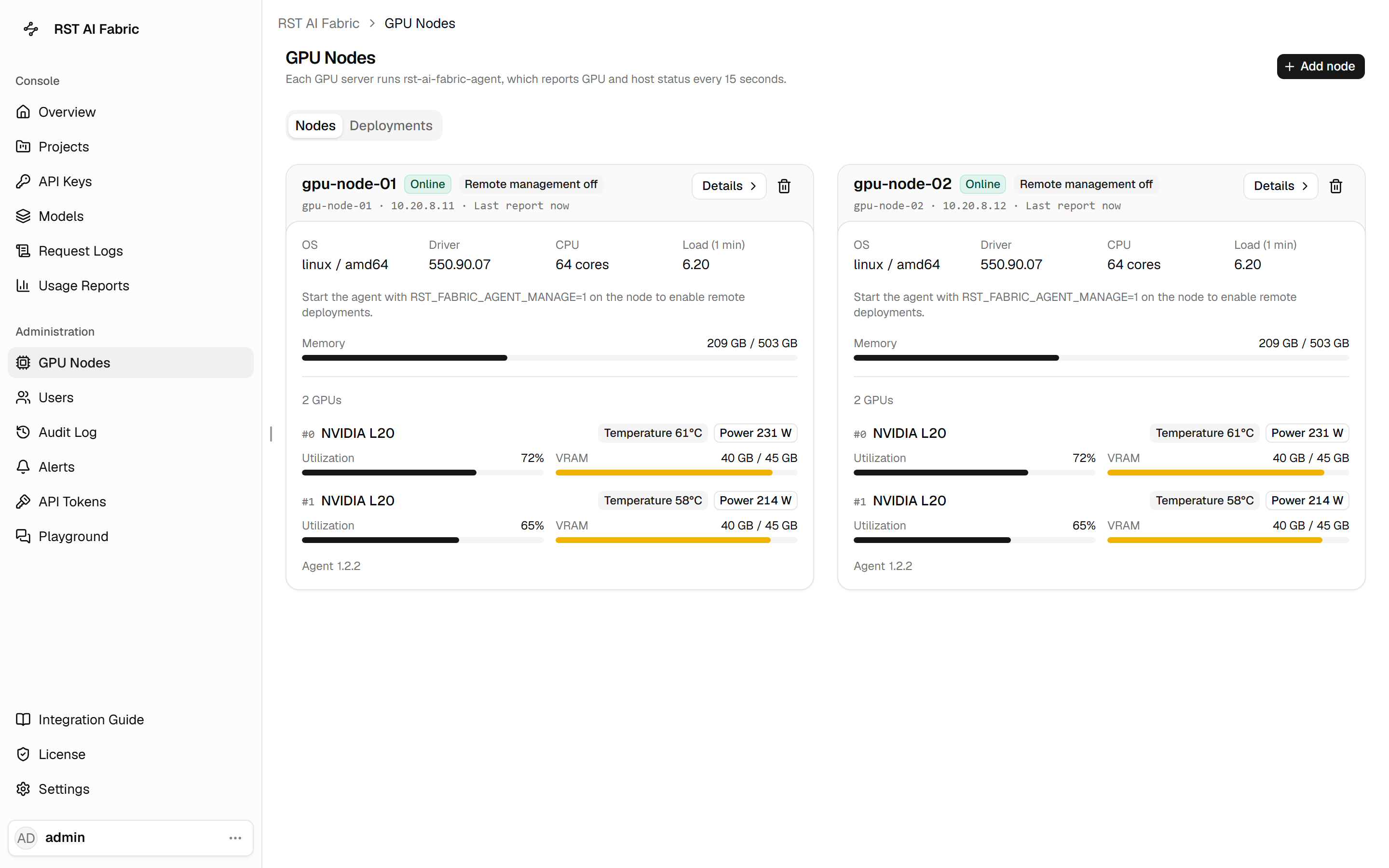
The page has two tabs, Nodes and Deployments. For installing the agent, see Multiple nodes.
Add a node
- Select Add node and enter a node name, for example
gpu-01. - The dialog shows the access token (shown only this once) and two ways to install: running the agent directly, or as a systemd service (recommended). Copy them and install on the GPU server as shown.
- Once the agent starts, the node shows as online.
Delete a node
Only nodes without deployments can be deleted. Delete the node's deployments first, so that the agent stops and removes the containers, then delete the node. Its token then stops working and further reports are refused.
Node detail
Select a node name to open its detail page, for the last hour, 24 hours or 7 days:
| Section | Contents |
|---|---|
| Metric cards | GPU count and how many are busy, GPU utilisation, memory, power and limit, and the calls this node served with errors and average latency |
| GPU trends | Utilisation, memory, temperature and power per GPU. Click the legend to hide or show a GPU. Recorded once a minute and kept 7 days |
| Host load | 1-minute load and memory |
| GPUs | Per GPU: utilisation, memory, temperature, power, fan, core clock, performance state and PCIe, ECC errors and processes |
| GPU processes | Processes using the GPUs, with PID and memory |
| Host | Operating system, kernel, CPU, 1 / 5 / 15-minute load, memory, uptime, disks |
| Runtime | Driver, CUDA, Docker, agent version, whether remote deployment is on, advertised address, allowed images |
| Models served | Model upstreams that point at this node, with requests, errors and average latency |
| Deployments | vLLM deployments on the node; Manage deployments opens the Deployments tab |
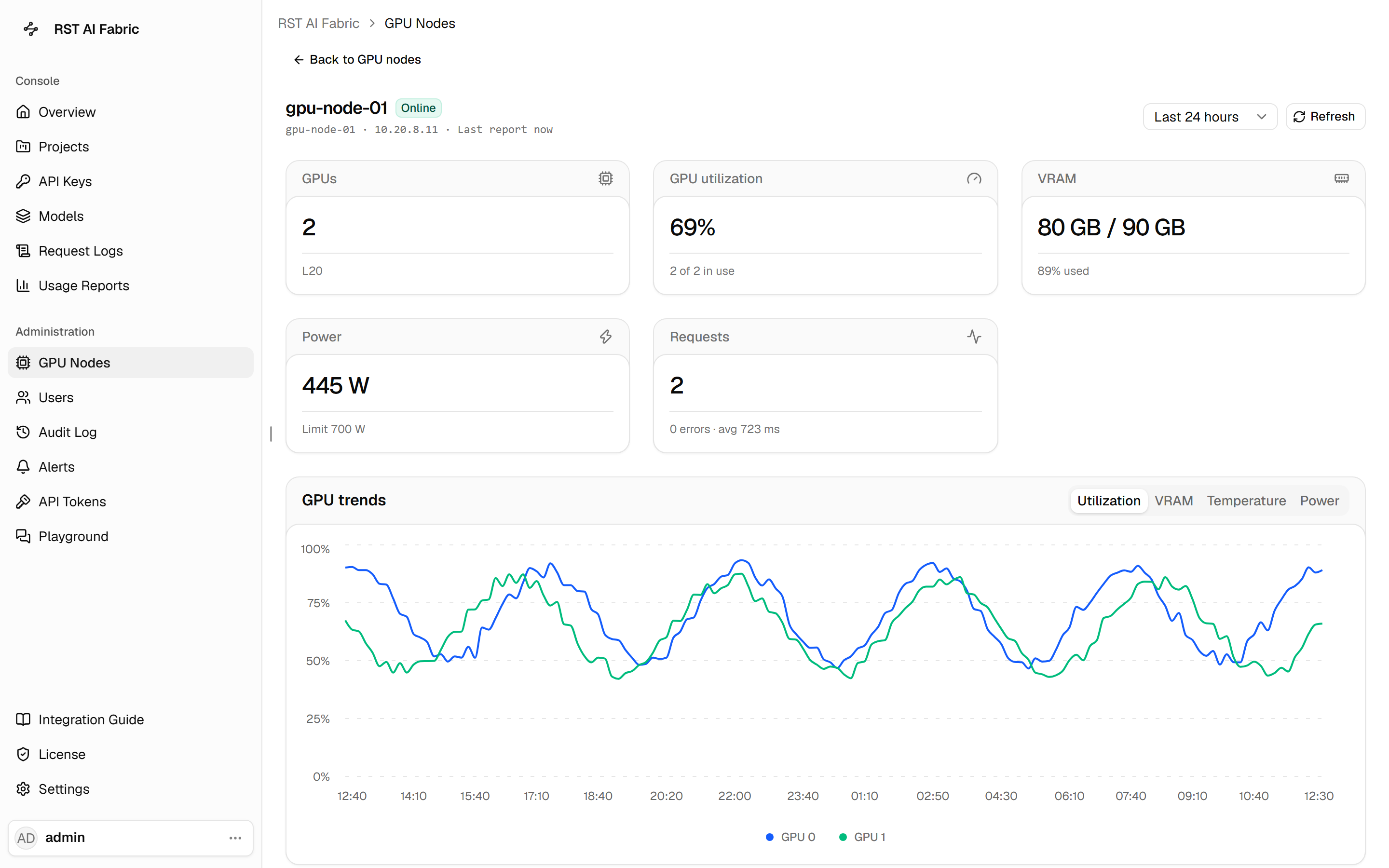
The GPU utilisation chart shows one-minute averages; the table shows current values. With an older agent some details (clocks, processes, disks and so on) are missing until the agent is updated.
Remote vLLM deployment
When a node's agent runs with RST_FABRIC_AGENT_MANAGE=1, the Deployments tab can start and stop vLLM containers on it. For preparing the node, see Multiple nodes.
Steps
-
On the Deployments tab, select New deployment and fill in:
Field Description Node A node with remote management on Name Lowercase letters, digits and -, for exampleqwen-7bImage An image on the node's allowlist, for example vllm/vllm-openai:<version>Model A Hugging Face repository such as Qwen/Qwen2.5-7B-Instruct, or a/models/...path in the node's model directoryServed model name The model name vLLM exposes Port Port on the node, 1024 to 65535, unique per node GPUs all, or comma-separated indexes such as0,1Extra arguments vLLM arguments such as --max-model-len 8192,--gpu-memory-utilization 0.9,--tensor-parallel-size 2.--host,--port,--modeland--served-model-nameare set by the systemEnvironment variables One KEY=VALUEper line, for exampleHF_ENDPOINT=https://hf-mirror.comorHF_TOKEN=...Start after saving Starts the deployment when saved -
Save. The status moves through pending, starting and running; running means vLLM's health check passes. While starting or on error, select View logs for the container's recent output.
-
Once running, select Register as upstream and enter a model name (the model is created if it does not exist) and, optionally, an address. The upstream URL is
http://<advertised address or agent IP>:<port>/v1.
Changing a deployment's settings recreates the container. Use Stop and Start to switch it off and on. Deleting a deployment makes the agent stop and remove the container at its next sync, and removes the upstreams registered for it; the model itself stays. Changing the port or served model name updates the registered upstream URL; upstreams added by hand are not touched.
New deployments get a generated vLLM API key that the gateway sends automatically, so vLLM cannot be called around the gateway.