

Users
Creating local accounts and assigning roles, resetting passwords and two-factor authentication, disabling, deleting and bulk actions, account sources, and the rules that protect the last administrator.
The Users page lists every account with its username, source, role, status, last sign-in and creation date. Only administrators can open it.
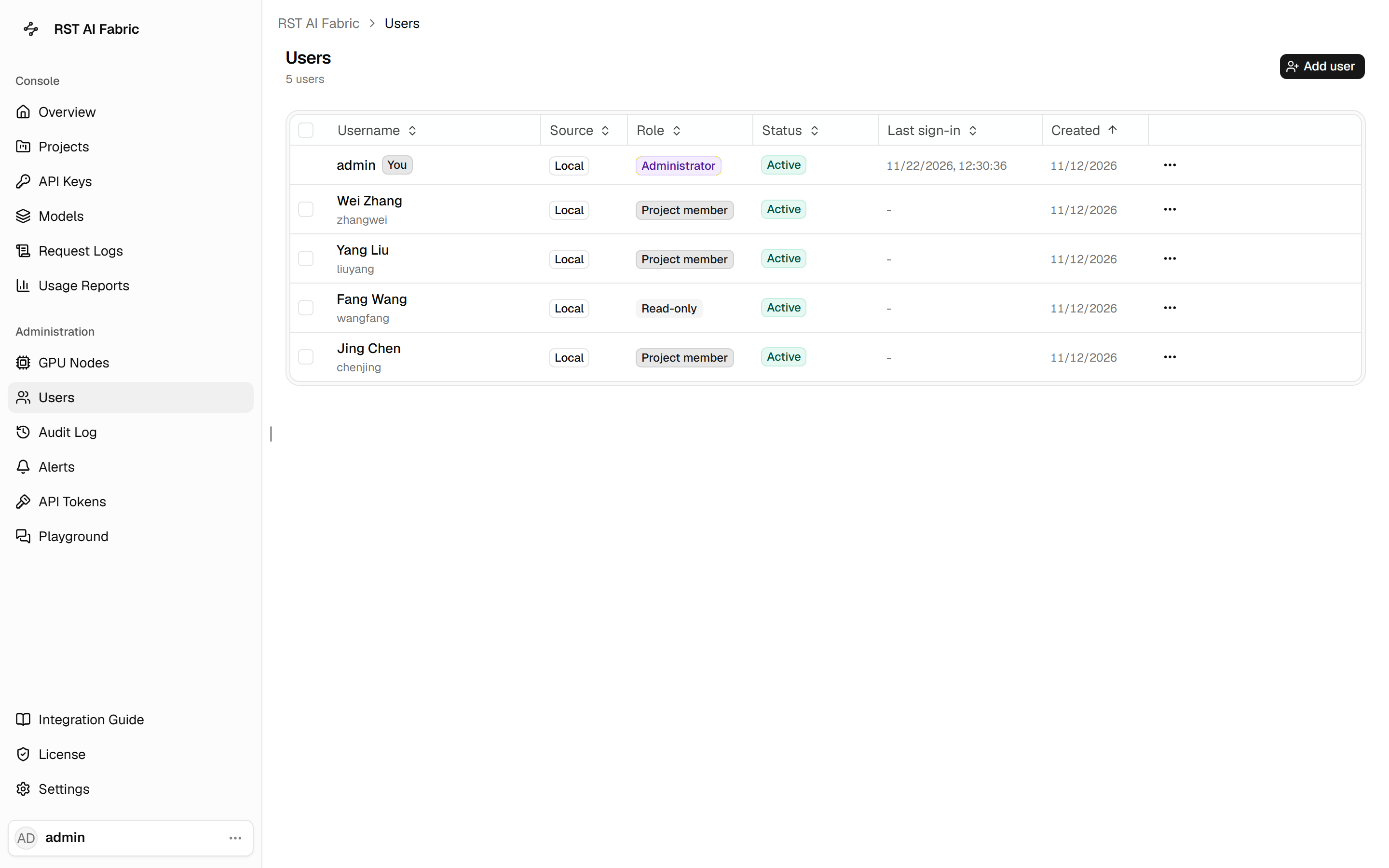
Add a user
-
Select Add user.
-
Enter a username (3 to 64 characters: letters, digits,
.,_and-) and a password (at least 8 characters). -
Choose a role:
Role Description Administrator Can view and change all configuration Read-only Can view the console pages but cannot change anything Project member Sees only their own projects and can create keys in them. After creating the account, add it to a project under Projects
Local accounts sign in with username and password. OIDC, Feishu and LDAP users are provisioned at first sign-in; see Sign-in integrations.
Account sources
The Source column shows Local, SSO, Feishu or LDAP. Accounts with two-factor authentication carry a 2FA badge. Passwords of non-local accounts are managed by their identity systems and cannot be changed or reset here.
Change and reset
- Edit: change the role.
- Reset password: local accounts only. The user's signed-in sessions end.
- Reset 2FA: clears the user's two-factor authentication, for example after a lost phone. The user signs in with the password alone next time and can link an authenticator again.
- Administrators cannot reset their own password or 2FA on the Users page; they change them under Settings > Personal after verifying.
Disable and delete
- Disable: the user can no longer sign in and their sessions end at once. Enable reverses it.
- Delete: cannot be undone. The user can no longer sign in; audit records are kept.
- Bulk actions: select several users to enable, disable or delete them together.
You cannot disable, demote or delete yourself. The system always keeps at least one usable administrator; an action that would remove the last one is refused (last_admin).
Forgotten administrator password
Another administrator resets it on the Users page. If there is only one administrator, contact technical support.