

License
What a licence covers, online and offline activation, licence states and the offline grace period, restrictions without a licence, the inference node limit and gateway activations, and how to buy.
RST AI Fabric requires a licence. A licence is bound to the machine identifier of the gateway host (/etc/machine-id) and sets the validity period, the number of gateways that can be activated and the inference node limit. The License page is at the bottom of the sidebar; administrators and read-only users can view it (project members cannot see it), and only administrators can activate.
Contact sales for pricing: Contact us.
Licence status
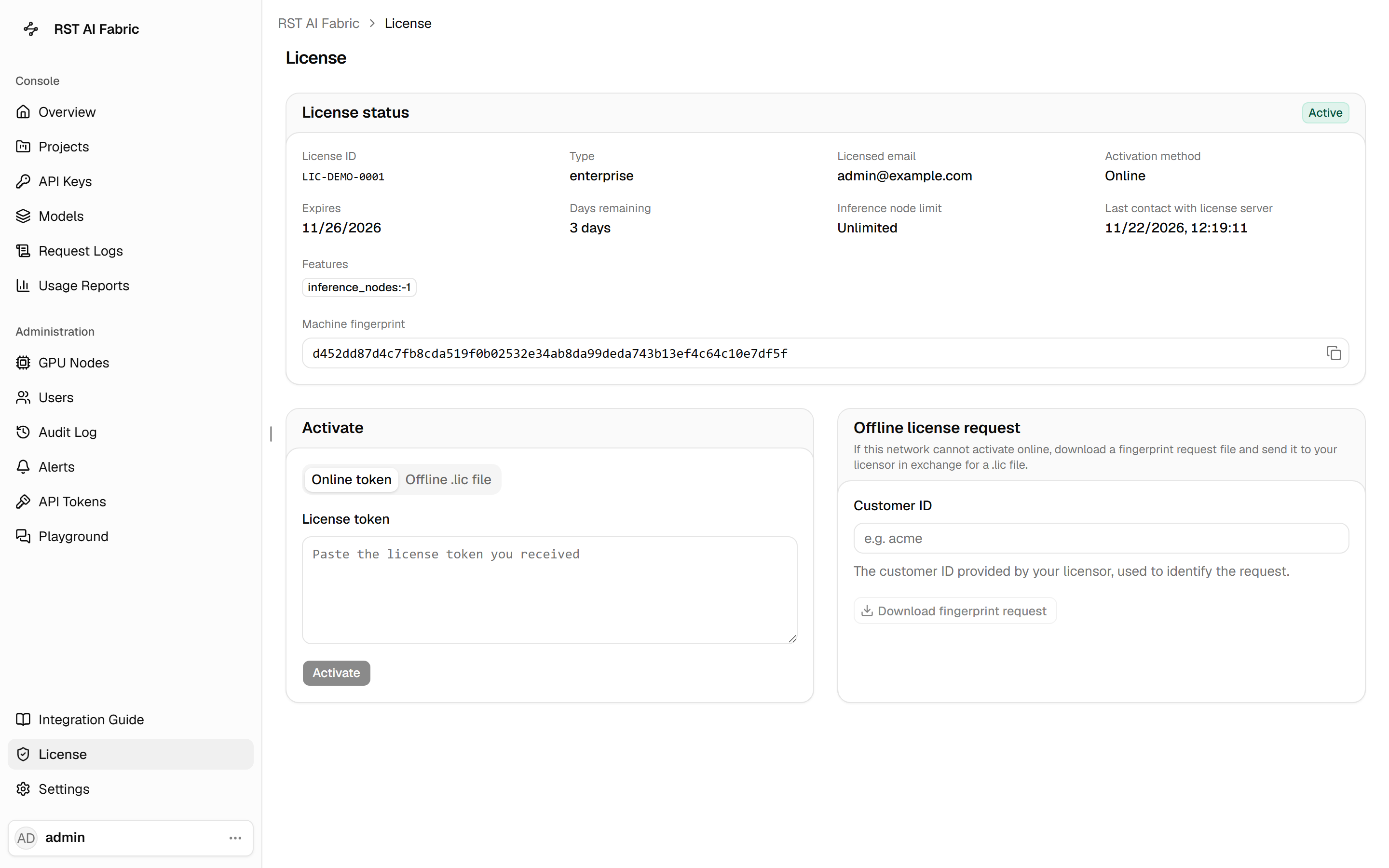
The License status section shows:
| Field | Description |
|---|---|
| License ID, Type, Licensed email | Basic licence details |
| Activation method | Online or offline |
| Expires, Days remaining | Validity |
| Inference node limit | Inference nodes allowed |
| Features | Features included in the licence |
| Last contact with license server | Last successful contact, for online activation |
| Machine fingerprint | This host's hardware fingerprint; select Copy fingerprint to copy it |
| State | Meaning |
|---|---|
| Unlicensed | Not activated yet |
| Active | Valid |
| Grace period | An online licence cannot reach the licence server for now; everything still works |
| Expired | Past the validity period |
| Revoked | Revoked by the licensor |
| Invalid | Signature, product or host binding does not match |
Online activation
Prerequisites
- The administrator role.
- The gateway host can reach
license.reallysec.com:443.
Steps
- Under Activate, choose the Online token tab.
- Paste the licence token from your licensor and select Activate.
The gateway then contacts the licence server once a day. Up to 3 days without a connection do not affect service; during that grace period a notice appears at the top of the page. After the grace period the licence stops working until the connection returns, and then recovers on its own.
Offline activation
For gateways that cannot reach the internet.
Steps
- Under Offline license request, enter the Customer ID provided by your licensor and select Download fingerprint request.
- Send the downloaded file to your licensor.
- When you receive the
.licfile, choose the Offline .lic file tab under Activate, select the file and activate.
Offline activation needs no network connection.
Without a valid licence
When the licence is unlicensed, expired, revoked or invalid:
- You can sign in to the console; a notice appears at the top of the page.
- Creating API keys and models fails with 403
license_required. - The gateway rejects every
/v1call with 403license_required, and the playground is unavailable. - Existing keys can still be edited, disabled and deleted, and administrators can still create projects.
Alerts can be sent when the licence is about to expire or becomes invalid; see Alerts.
Gateway activations and inference nodes
- Gateway activations: each gateway uses one of the licence's activations. When none are left, activation reports
max_nodes reached; ask your licensor to release one or add more. - Inference node limit: the number of distinct
host:portpairs across the enabled upstreams of all enabled models may not exceed it; a model that would exceed it cannot be saved.
Moving to another host
The licence is bound to /etc/machine-id, so it must be activated again after moving to a new host; contact your licensor. If the host has no /etc/machine-id, the License page shows "no hardware identifier"; run systemd-machine-id-setup and restart the service.
Upgrading the gateway does not affect the licence.
Settings
The tabs of the Settings page: Personal, Branding, Security, Login integrations, Email, Content safety (keyword filtering and personal information masking) and Cost.
FAQ
Installation and sign-in failures, licence activation problems, calls returning 401, 403, 404, 429 or 502, stalled streaming, IP allowlists not applying, GPU nodes offline and failed update checks. Causes and fixes by symptom.