

Outbound channels
Push reports and alerts to Feishu, DingTalk, WeCom, Teams, Slack or email: destinations, delivery schedule, mail server and delivery log. Failed deliveries retry automatically and can be resent.
Outbound channels is where the gateway sends messages out. It is a tab of the Platform health page and is available in every edition. It carries scheduled Reports, new offenses at or above a threshold, conclusions pushed from an offense investigation, and escalations from Triage. Messages follow the interface language; pushes with no user behind them use RST_OUTPUT_LANG. Subject values leaving the network are masked according to the current masking mode.
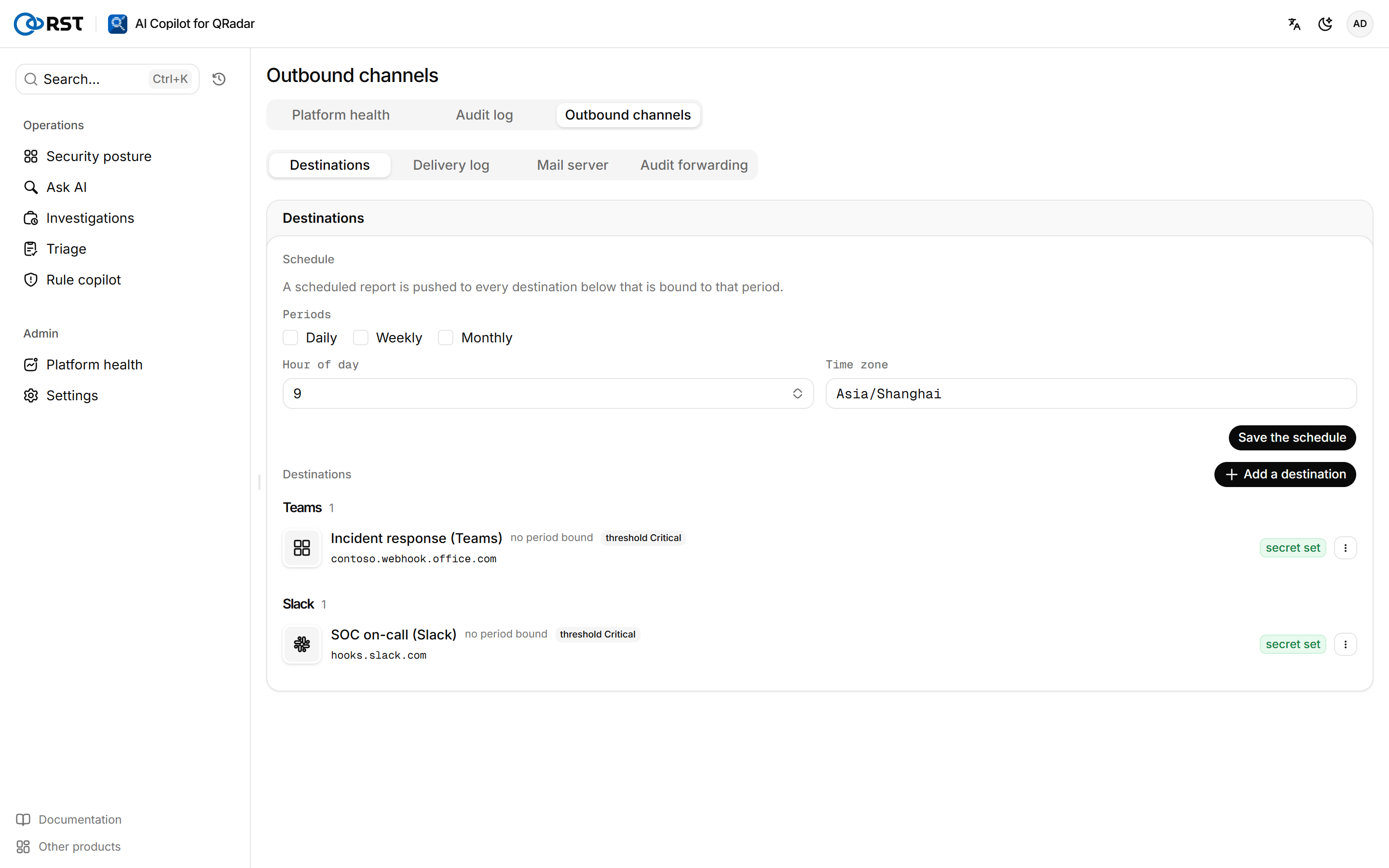

Add a destination
Prerequisites
- Administrator role.
- For email, a configured mail server; see below.
Steps
- Under Destinations, select Add a destination.
- Select the Channel (Feishu, DingTalk, WeCom, Teams, Slack or Email) and enter a Name.
- Enter the Webhook URL of the group bot or Incoming Webhook. For Feishu and DingTalk bots with signature checking on, enter the Signing secret. For email, enter the Recipients instead, separated by commas, semicolons or newlines.
- Under Bound periods, select which reports it receives: daily, weekly, monthly.
- Select the Alert threshold. New offenses at or above this severity are pushed to the destination; the default is high.
- Make sure Enable this destination is selected, and save.
- Select Send a test on the destination to confirm delivery.
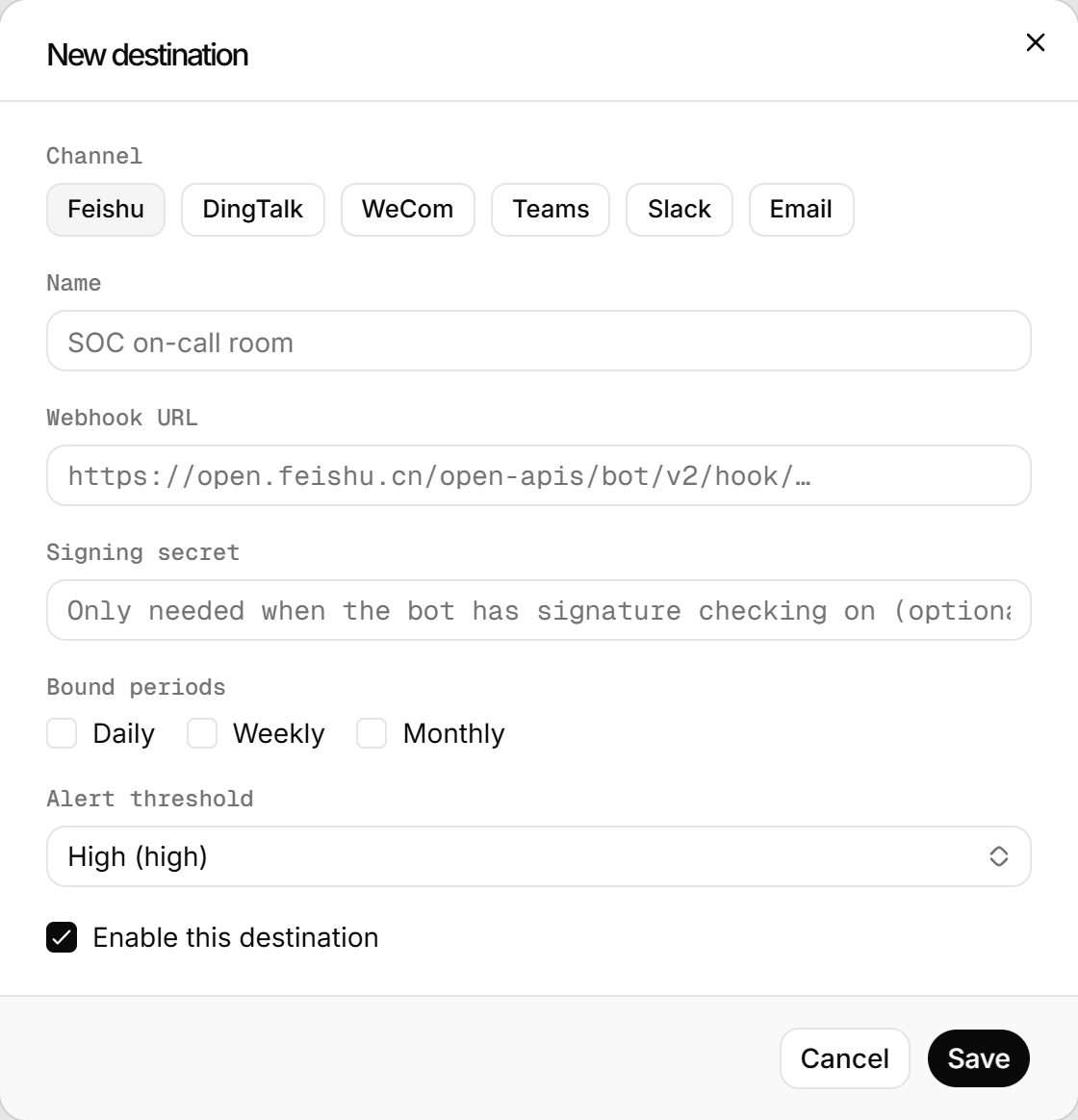
Webhook URLs and secrets are stored encrypted in copilot.db. After the gateway is reinstalled, the old ciphertext cannot be opened and the destination shows Secret invalid; enter it again.
Set the delivery schedule
Steps
- Under Schedule, select the Periods, the Hour of day and the Time zone.
- Select Save the schedule.
When a scheduled report is generated, it is pushed to every destination bound to that period. Reports are generated according to RST_REPORT_SCHEDULE; see Reports.
Configure the mail server
Steps
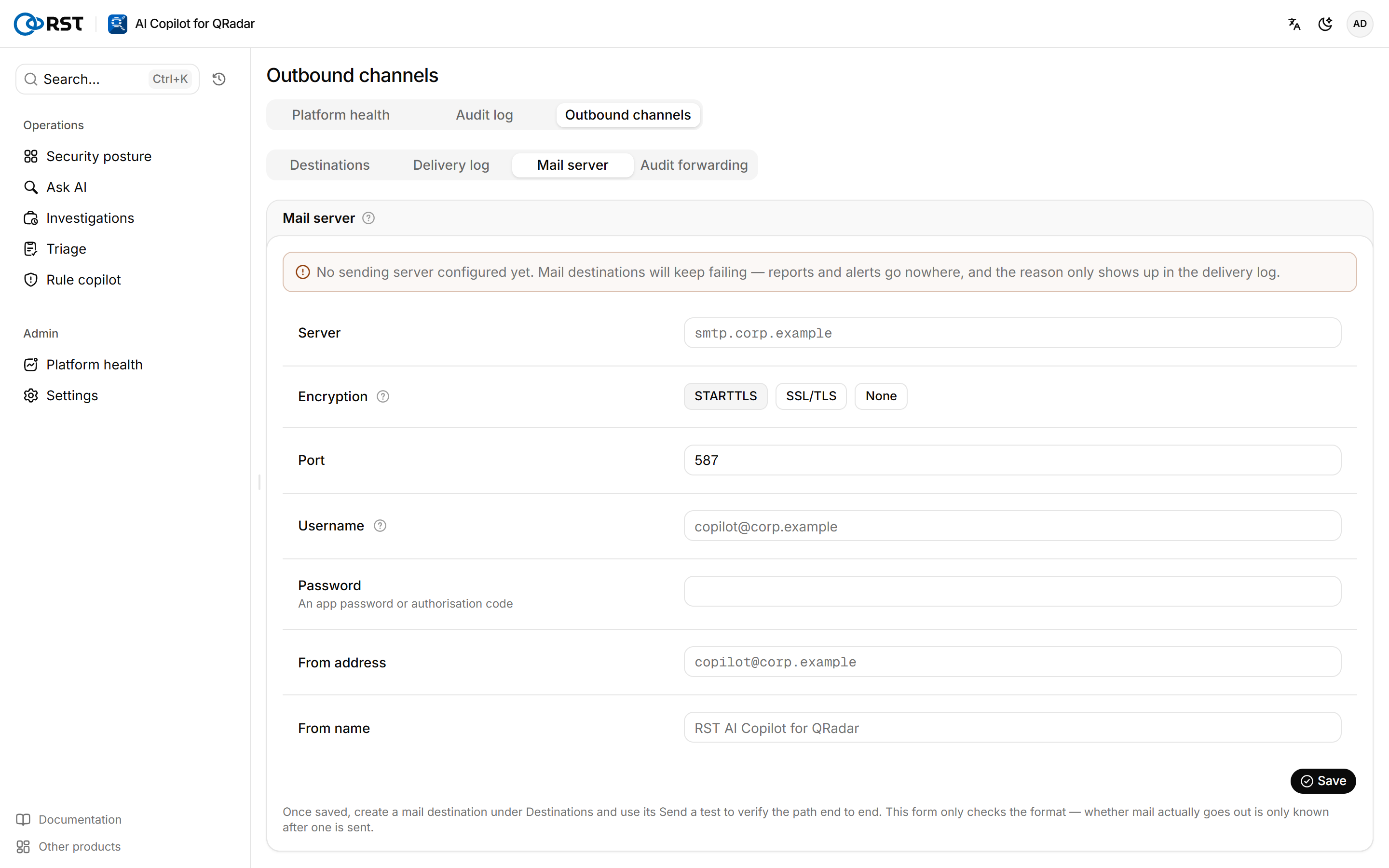
- Under Mail server, enter the Server and select the Encryption. The port follows the encryption unless you changed it yourself.
- Enter the Username and Password (an app password or authorization code). Leave the username empty if the server requires no authentication.
- Enter the From address and From name, and save.
- Create an email destination under Destinations and use its Send a test to verify.
There is one mail server for the whole deployment, shared by every email destination. Saving only checks the format; only a test delivery shows whether mail goes out. Without a mail server, email destinations keep failing.
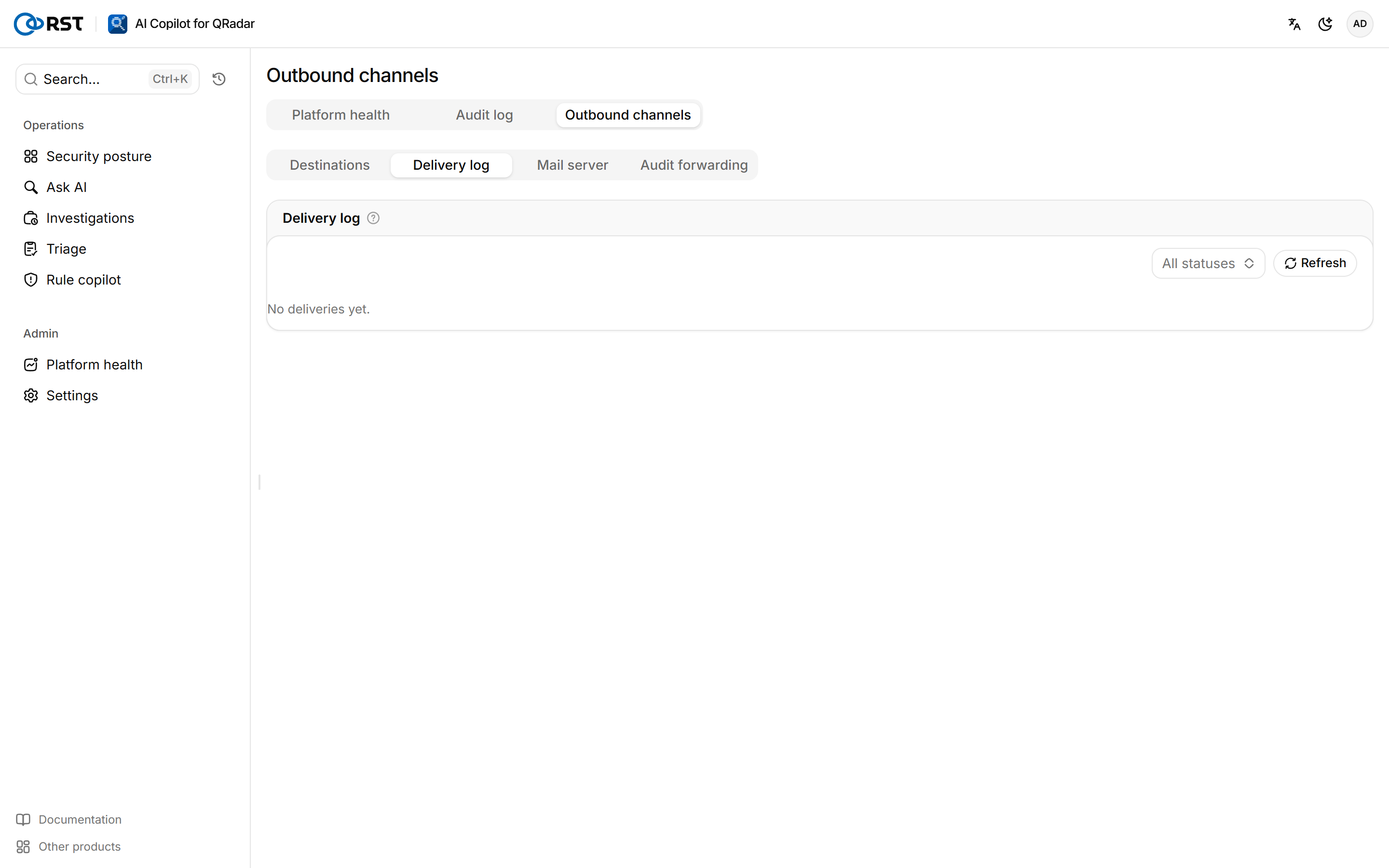
Resend failed messages
Steps
- Under Delivery log, filter by Given up.
- Fix the configuration named in Last error, then select Resend.
| Status | Meaning |
|---|---|
| Queued | Waiting to be sent |
| Sending | Being delivered |
| Delivered | Sent successfully |
| Will retry | Failed; retries automatically with backoff |
| Given up | Retries ran out |
Audit forwarding
The Audit forwarding tab configures forwarding of Audit log events to syslog or a webhook. It is the same setting as in Settings and has nothing to do with the destinations above. Audit forwarding is an Enterprise feature.
Audit log
Records of sign-ins, queries, model calls, offense write-backs and settings changes: who, when, data source, action, outcome, latency and token usage. Filter and export; Enterprise forwards them to a SIEM, including back to QRadar.
Account
Profile and password change, interface language and theme, and the Ask AI default source, rows per page and remembered columns. Saved immediately and kept with the account.